Create a Custom View on Your Delivery Dashboard
Last updated: November 19, 2024
The Nash Delivery Dashboard allows you to create custom views for efficient delivery monitoring. Follow these steps to set up a view tailored to your team's needs:
Steps to Create a Custom View
Access the Delivery Dashboard in your Nash portal.
Select the "+" icon at the top, next to default views (All, Assigned, Flagged). to add a new view.
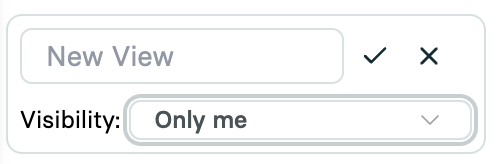
Name Your View:
Choose a descriptive name reflecting the view's purpose.
Use standard naming conventions if creating multiple views.
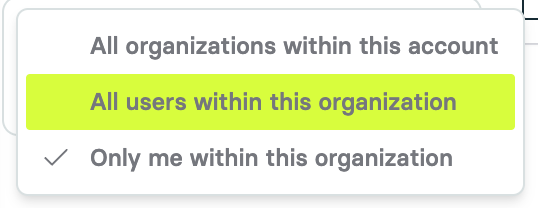
Select Access: Choose who should have access to this view.
Apply Filters:
Select the criteria for your custom view.
Common filters include:
Region (State or City)
Delivery Status
Provider
Delivery Time (Pickup or Dropoff)
Save Your View: After applying the filters, save your custom view.
Pin the View (Optional): Pin your view to the top of the dashboard for easy access.
Click on Views and select the pin icon next to your new view.
Sorting Your Custom View
By default, the dashboard sorts deliveries by Pickup Time in ascending order. To change the sort order, click on any column header. The sort order applies to all views.
You can also sort by other columns, such as Delivery Status or Provider, allowing you to shift focus as needed.