Search for an Order
Last updated: April 14, 2025
The Nash portal provides a user-friendly interface for managing delivery orders. This guide will help you search for specific orders and review their details efficiently.
Search for an Order
Log in to your Nash portal account.
Access the Orders section from the main menu.
Using the Search Function
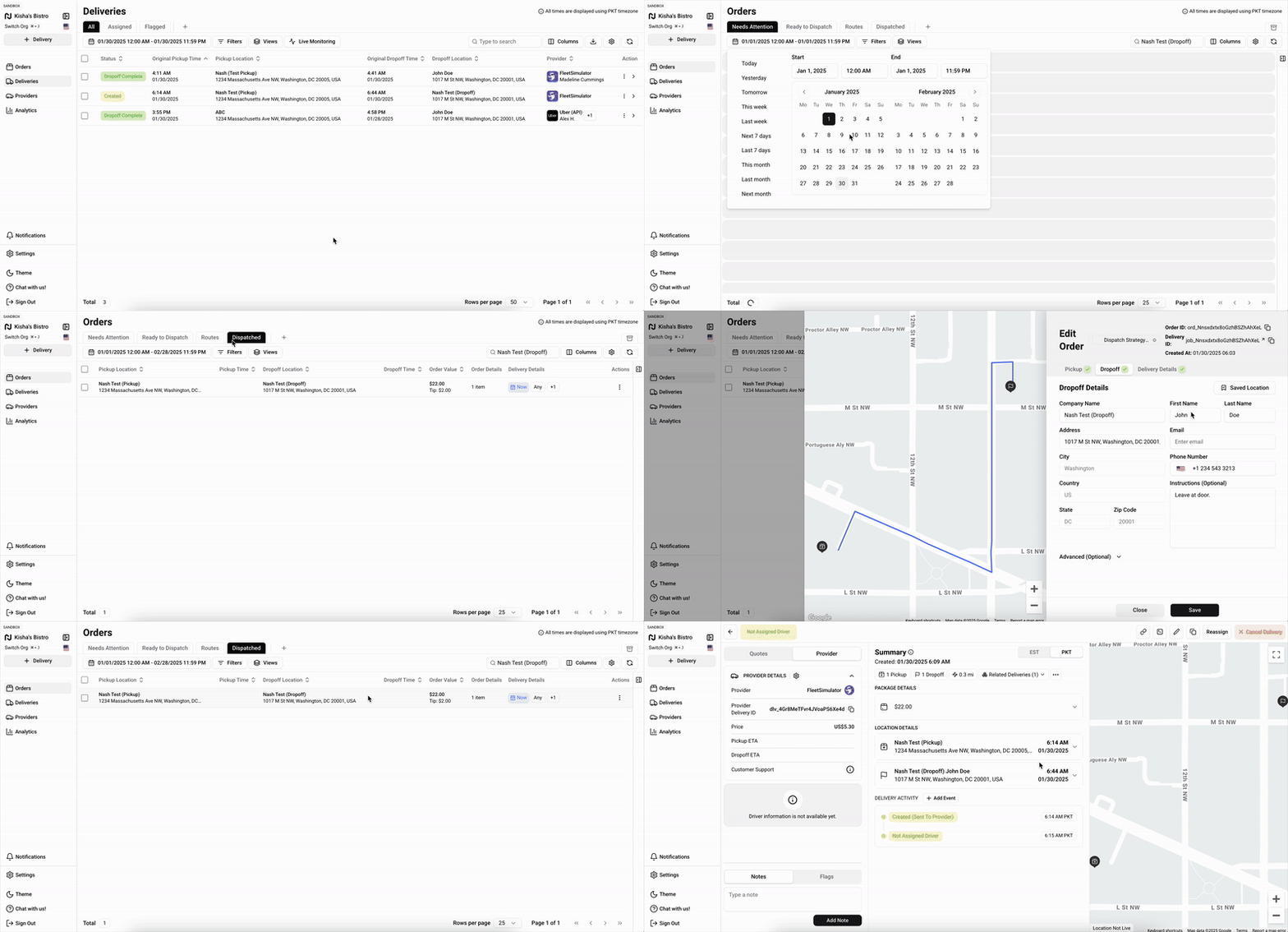
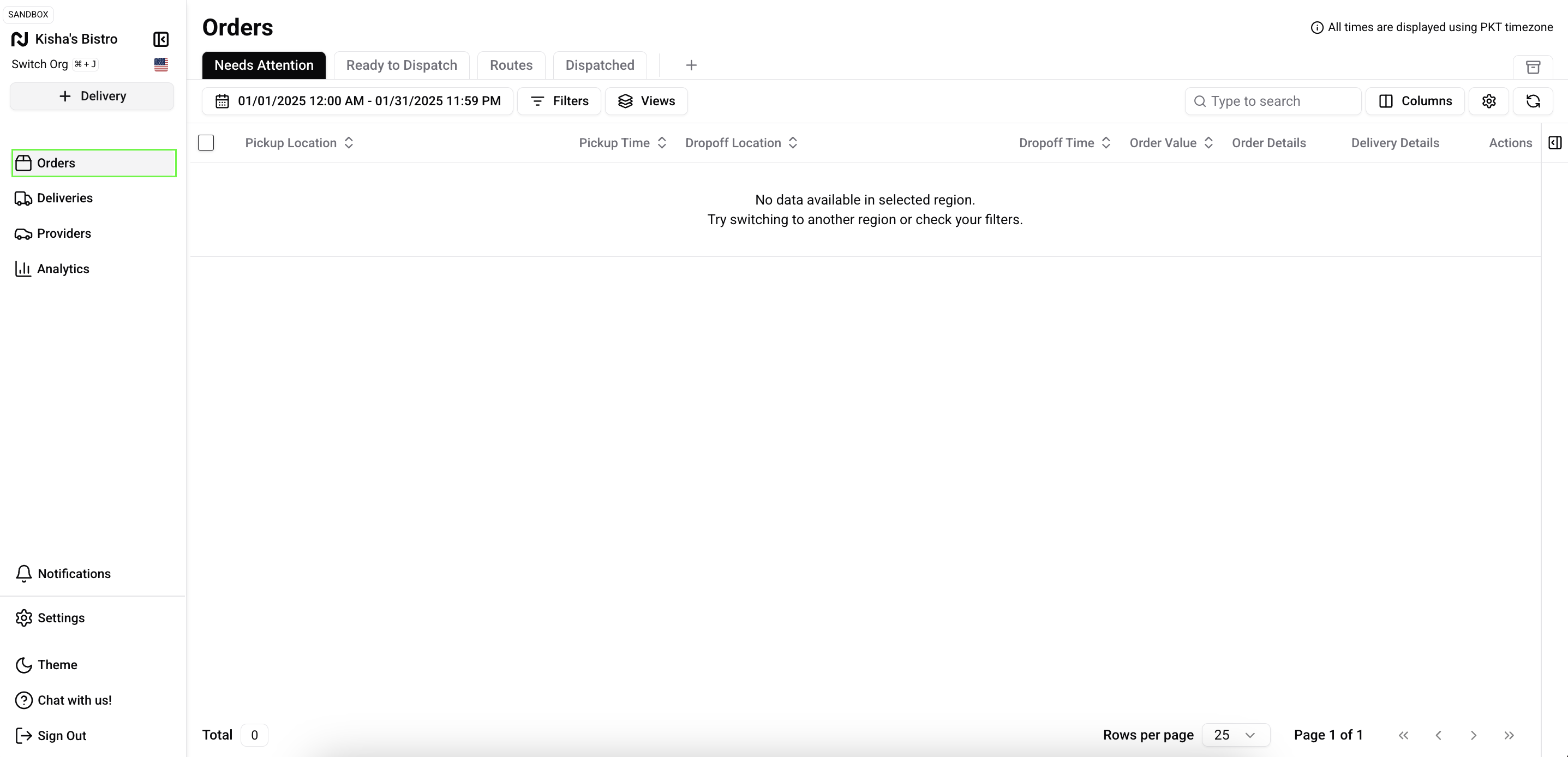
Select state of the Order you are searching by selecting the appropriate tab at the top of the page: Needs Attention, Ready to Dispatch, Routes, Dispatched, and Archived.
Locate the search bar at the top of the Orders page.
Search Criteria
Refine your search by selecting the filter button and utilizing any criteria. Some popular filters include:
Date Range: Define a specific time frame.
City: Filter by delivery location.
Pickup Business Name: Search by the collecting business name.
Dropoff Business Name: Search by the receiving business name.
Order Status: Filter by status (e.g., Completed, In Transit, Canceled).
Example of using Search Criteria
To find recently delivered orders in "Los Angeles," select to the Dispatched tab, enter "Los Angeles" in the City filter. If the order was completed last week, set the Date Range to the past seven days for precise results.
Performing a Search
Input your search criteria into the appropriate fields.
Click Search or press Enter.
Review the matching orders in the results list.
Refining Your Search
If you get too many results:
Apply additional filters to narrow down results.
Combine multiple criteria for better precision.
Search Refinement Example
If searching for "Café XYZ" returns multiple entries, add In Transit under Order Status to show only active deliveries.
Viewing Order Details
After finding your order:
Select the order from the search results.
Review the detailed information on the order page.
Order Information Details
The order details page displays:
Pickup Location: Collection address and business name
Dropoff Location: Delivery destination
Timestamps: Key times (ordered, pickup)
Current Status: Order progress status
Viewing Delivery Details
If you need to view the delivery details of an order you can do so by clicking on the Delivery ID link in the upper right hand corner. For more information on what information is available about the delivery see this article