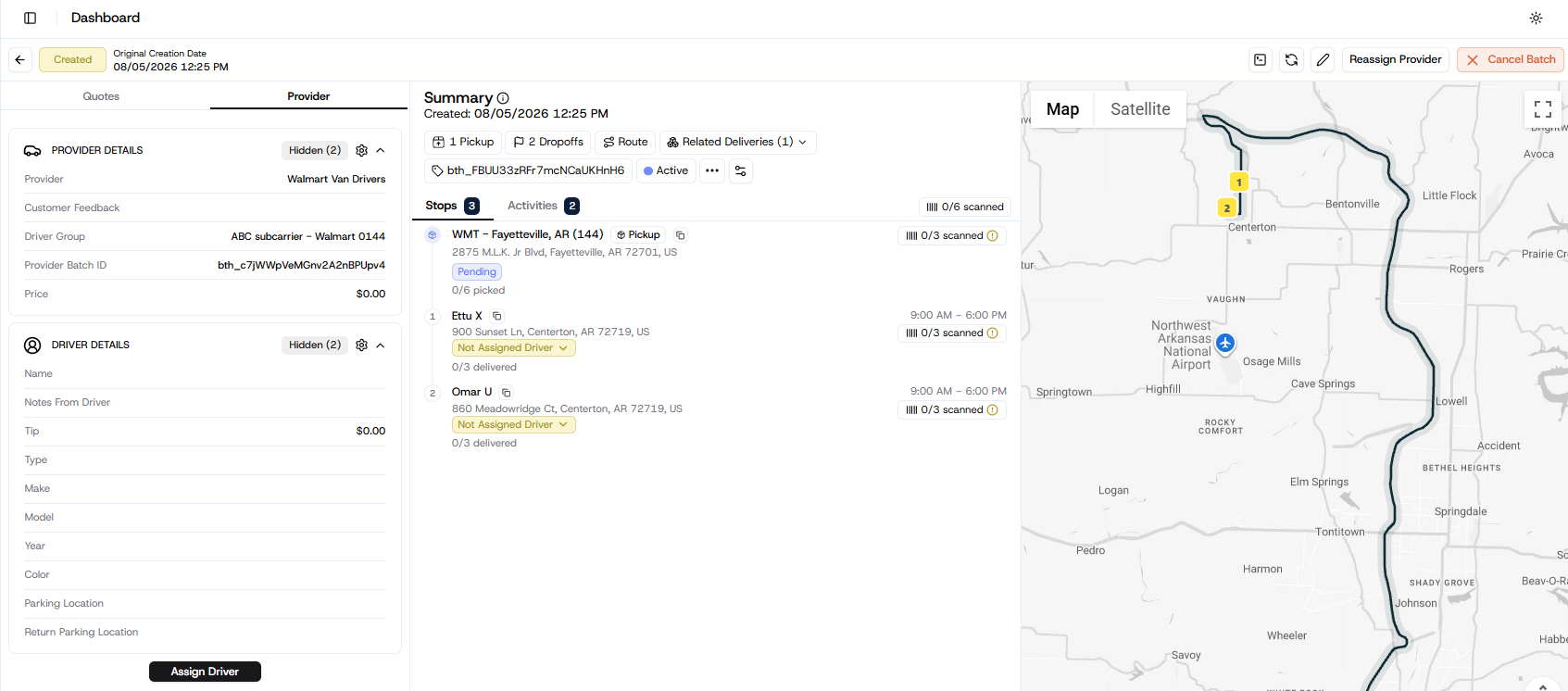
Dispatching Deliveries in Deliveries tab
Last updated: August 20, 2026
When a Route is received, it will be displayed in the Deliveries tab. The Driver Group will be automatically assigned based on the zip code of the store location.
Manually to Specific Driver
Click the route you wish to assign a driver to. The Slide Out Info panel is displayed. Click Assign Driver button. The list of available drivers is displayed. Select a driver and click Assign. The Deliveries tab will now show that the delivery has been assigned to the driver. | 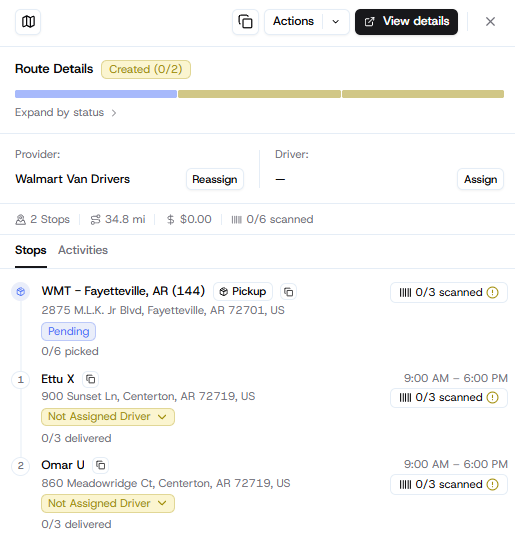 |
Let Drivers Claim Deliveries
If you turned on Auto-Assign in the Driver Group and you don’t select a driver, the route will automatically be offered to all eligible drivers in the Driver Group in the Nash Driver App.
Viewing Delivery Details
Click anywhere on the order in the Deliveries tab to view a snapshot of the delivery in the Slide Out Info panel.
To view the details in a new page, click the > arrow on the far right of the delivery.