How routes work
Last updated: October 12, 2026
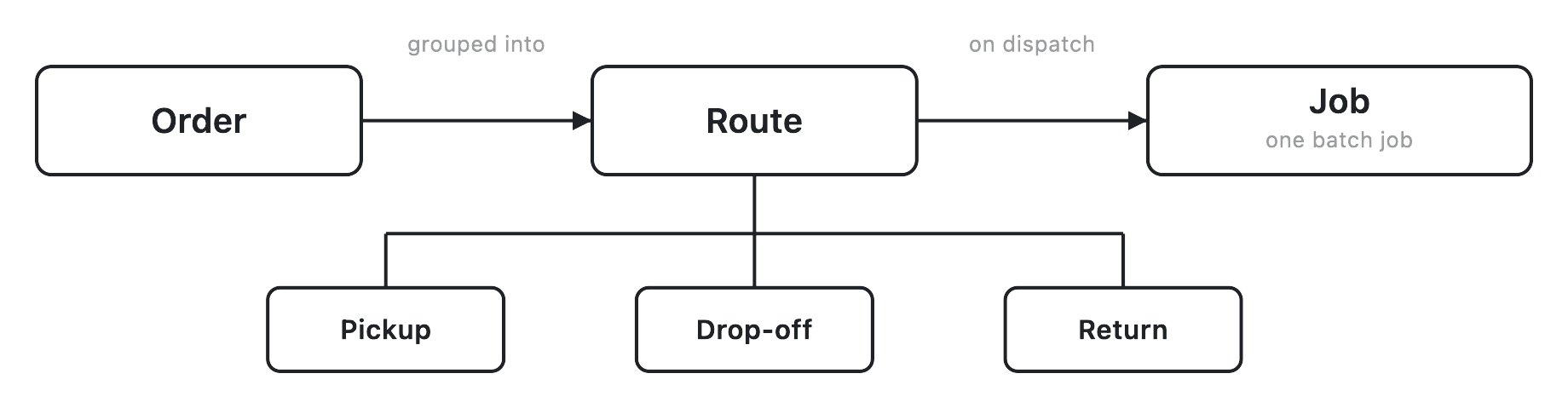
A route is an ordered list of stops — pickups, drop-offs, and returns, plus the occasional waypoint like a driver break or a fixed start and end point — that go out together as a single dispatch. Where an order is one pickup and one drop-off, a route is the multi-stop version of the same idea: several orders grouped into one run, sequenced into the order a driver will actually work them. Dispatching a route turns that whole group into one batch job — a single job that carries all of the route's stops — the same way dispatching a lone order turns it into one job. Everything else in this article — what a stop is, why a routed order shows up in two places, what locks the moment you dispatch — follows from that one fact.
How it works
Start with the spine, because the rest hangs off it: order → route → job. An order exists before anything is committed — it's a request for a pickup and a drop-off that Nash hasn't sent anywhere yet. Grouping a set of orders builds a route: each order becomes a member of that route, and the route arranges them into stops in a specific visit order. An order can belong to at most one route at a time, so a route is a clean partition of the work — no order is half in two runs.
A stop is the unit a route is actually made of. Most stops are the pickups and drop-offs that come from the orders you grouped — one order usually contributes a pickup stop and a drop-off stop — and a stop can also be a return (bringing something back) or a waypoint the route needs but no customer sees, like a scheduled driver break or a route start and end point. Each stop knows what it's serving (which order and package), roughly how long it takes to service, and where it sits in the sequence relative to the stop before it. The route, in other words, isn't just a bag of orders — it's those orders unfolded into an ordered list of things a driver does, one after another.
Dispatching the route is the moment the plan becomes work. Nash takes the whole grouped route and creates one batch job from it — a single job that carries every stop in the route, rather than one job per order. That batch job is what moves through delivery: it's the live record a driver works against and the thing your customer's tracking follows. The route itself doesn't disappear when that happens; like a dispatched order, it stays in place as the record of what went out, now carrying a link to the job it produced. So the same relationship you know from a single order — the plan stays put, the job is the live thing — holds for a route, just with a group of stops instead of one.
One naming note, because the word shows up: the job a route produces is a batch job — "batch" here just describes the job type, a single job that carries a batch of stops. It doesn't make the route itself a "batch," and it isn't a separate kind of object you manage on the Routes tab. When you see "batch job," read it as "the one job a dispatched route turns into."
The lifecycle you build against
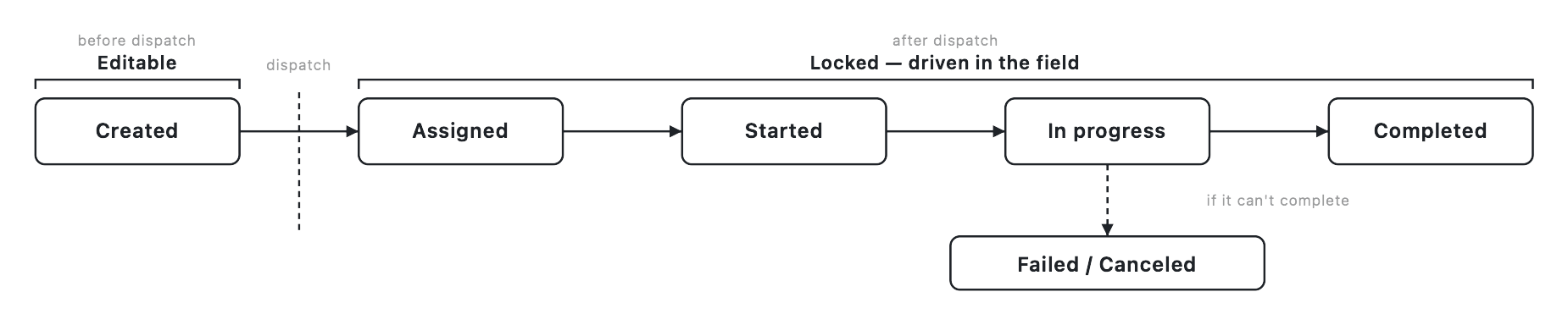
For everything you do on the Routes tab, the lifecycle that matters is a simple binary: a route is either not dispatched or dispatched, and that single line divides its whole working life.
Before dispatch, a route is a plan, and a plan is yours to reshape. You can add orders to it, remove them, reorder the stops, split it, resequence it, recalculate its timing, and assign the provider, vehicle, or driver who'll run it. Nothing is committed yet, so none of those changes cost anything — you're arranging a run, not editing something that's already moving.
Dispatching is the action that ends that freedom. The moment you dispatch a route, its structural actions lock: Calculate Timing, Split, Resequence, and Dispatch all disable, and the route stops accepting new orders. This is deliberate and it's enforced on the server, not just hidden in the interface — a dispatched route is the record of what actually went out, and letting you rearrange it after the fact would mean the record no longer matched the work. If you need to change something after a route is dispatched, that's a new order or a new route, not an edit to the one that's already gone.
Important
The editable-versus-locked line is the whole lifecycle, from the Routes tab's point of view. Before dispatch you can freely reshape a route; after dispatch its structure is fixed. Everything the tab lets you do to a route's stops and assignment happens on the "not dispatched" side of that line.
That binary is what you build against, but it isn't the whole story of a route once it's out in the field. Behind the scenes a dispatched route also carries a fuller status as the driver works it — created, then assigned, then started, then in progress, and finally completed, with failed and canceled as the branches where a run doesn't finish cleanly. Those statuses are real, but they're driven by the driver in the field, not by you on the Routes tab: a route ticks from started to in progress only on genuine progress at a stop, the kind of signal that comes from the driver app as someone actually arrives and works each stop.
So it's worth being precise about what the classic Routes tab is for. It's where you build a route and dispatch it — the "not dispatched → dispatched" half of the picture. Watching each stop tick over as the driver works it lives elsewhere: on the driver app, and on the live delivery view that follows the batch job after dispatch. Don't expect the Routes tab to narrate a route's field progress stop by stop; expect it to be the place you assemble the run and send it, and hand the live play-by-play off to the surfaces built for it.
Two ways to group orders into a route
There are two ways orders become a route, and they sit at different altitudes of effort. Both land in the same place — draft routes on the Routes tab, ready to review and dispatch — but they get there differently.
Group them yourself. From your Ready-to-Dispatch orders, you select the ones that belong together and build a route from them directly — the "Create Route" path. You decide what travels together and, once it's built, you decide the order of the stops. This is the hands-on option: you know these five orders should ride together, so you say so. It's the right tool when the grouping is obvious to you and small enough to arrange by hand.
Let Nash optimize. Optimization is the same job done by a solver instead of by you. You hand it a set of orders and your contracts — the providers or own-fleet options available to carry the work — and it finds low-cost routes that still satisfy every constraint, turning a pile of loose orders into sequenced routes that are ready to dispatch. Instead of you deciding which orders group and in what order, the optimizer works that out: which orders share a route, which contract runs each one, and the sequence of stops that keeps the cost down without breaking a rule. Nash offloads the actual solve to a dedicated optimization engine and hands back the routes — which orders, in what order, on which contract — along with the cost of each.
What the optimizer weighs breaks into a handful of lever categories. You don't set any of these on the Routes tab — they live in an optimization strategy — but knowing what they mean is what makes an optimized result readable:
- Constraints a route must respect — the hard rules a valid route can't break: vehicle capacity (how many orders, sometimes weight or item count), a minimum and maximum number of orders per route, caps on driving distance and time, delivery time windows and how late is too late, how long each pickup and drop-off takes to service, driver breaks and hours-of-service limits, and capabilities like a refrigerated vehicle or a specific vehicle type where the work requires one.
- The cost model — what "cheapest" actually means to the solver: a fixed cost per vehicle, costs that scale with time and distance, and costs per stop or per order. Some cost information has to be present for optimization to have anything to minimize; it's the yardstick every candidate route is measured against.
- Depots and shifts — where a route starts and ends (often returning to a store or depot at the end of a shift) and the time bounds a shift runs within, so routes fit the window a driver is actually working.
- Sequencing and grouping — the rules that shape route shape: keeping certain orders together, keeping others deliberately apart, and the visit order the solver settles on for the stops inside a route.
- Solver behavior — the dials that trade thoroughness against speed: how hard the solver searches for a better answer, how tightly it clusters work, and whether it tries to balance load evenly across routes. Higher effort can find a cheaper plan; it just takes longer to do it.
Those levers don't live on the Routes tab. They live in an optimization strategy — a reusable, configured bundle of constraints, costs, and solver settings that lives in Automate ▸ Strategies, not something you tune per run on the orders list. For the complete, field-level list of everything a strategy can set — down to the individual optimizer parameters — see the optimization parameters reference. An optimization scheduler can run a strategy for you on a schedule, so the gather-orders-then-optimize step happens automatically rather than by hand. Scheduled optimization is an org-dependent capability — availability varies, so if you want it, reach out to Nash about access.
On the Routes side, though, the experience is the same whichever way the solve ran: you run Optimize (or the scheduler runs it for you), then save the result as routes. The routes land on the Routes tab as drafts — exactly like the ones you'd build by hand — for you to review, edit, and dispatch. Optimization doesn't dispatch anything on its own by virtue of being optimization; it produces the same reviewable draft routes, and you stay in control of whether and when they go out.
One order, two screens
The single most confusing thing about routes is worth its own section, because it looks like a bug the first time you hit it and isn't one.
Adding an order to a route doesn't change the order's status. A routed order that hasn't been dispatched yet is still just Ready to Dispatch — the same status it had before you grouped it — so it keeps appearing in the Ready-to-Dispatch list even though it's already sitting on a route. There's no separate "routed" status for it to move into, so nothing about being on a route removes it from the list it was already in. The order genuinely lives in two places at once: on its route, and still on the orders list.
What does change is how you're allowed to act on it. On that order's row in the Ready-to-Dispatch list, the usual dispatch buttons are replaced with a remove-from-route affordance — because you don't dispatch a routed order on its own. You dispatch it through its route, and the whole route goes out together as that one batch job. The order showing up in the list isn't an invitation to send it individually; it's just the order still being visible from a screen it never left.
That duplication can make the Ready-to-Dispatch list noisy — orders you've already committed to routes, sitting alongside the ones you still need to group. The fix is the Without Route filter on the orders list, which hides everything that's already attached to a route and shows only the work that still needs grouping. Reach for it whenever you want the list to mean "orders that actually still need a dispatch decision" rather than "every order, routed or not." It's the standard way operators keep the orders list focused once routes are in play.
What affects this
A route's behavior is shaped by a few objects that don't live on the route itself. They're configured elsewhere, and they're most visible in how an optimized route turns out — the same optimizer levers described above, seen from the Configure side where you actually set them.
| Object | Where it's set | What it does here |
|---|---|---|
| Optimization strategy | Automate ▸ Strategies — see optimization strategies | Holds every lever the optimizer uses — capacity and driving limits, time windows, the cost model, sequencing, and solver effort — plus the schedule that lets a strategy run automatically |
| Providers | Configure ▸ Network — see manage providers | The contracts a route can be assigned to and that optimization weighs when it picks the most cost-effective way to carry the work |
| Vehicles | Configure ▸ Fleet — see manage vehicles | For own-fleet routes, the vehicles a route can be assigned to — their capacity and type feed the capacity and capability constraints the optimizer respects |
None of these are fields you edit on a route each time. They're the configuration behind it — which is exactly why two routes built from similar orders can come out sequenced or costed differently, if the strategy, providers, or vehicles behind them differ. When an optimized result surprises you, the explanation usually lives one layer out, in the strategy that produced it, not on the route itself.
One thing to carry through all of this: Nash dispatches the route and hands it to a provider or your own fleet — Nash itself doesn't carry the delivery. What you're building and managing on the Routes tab is the group of stops and the decision to send it, not the drive itself.