Batch Splitting and Merging
Last updated: June 11, 2026
When a route is too large for 1 driver, or a driver has car troubles during the route and can no longer complete the deliveries, you can split the route and assign the newly created route to a new driver. You can also merge 2 or more routes into a single route.
After Splitting a batch, each driver will be required to Start Route again on the route summary screen. Make sure the driver is on the correct screen to Start the Route, as shown here. | 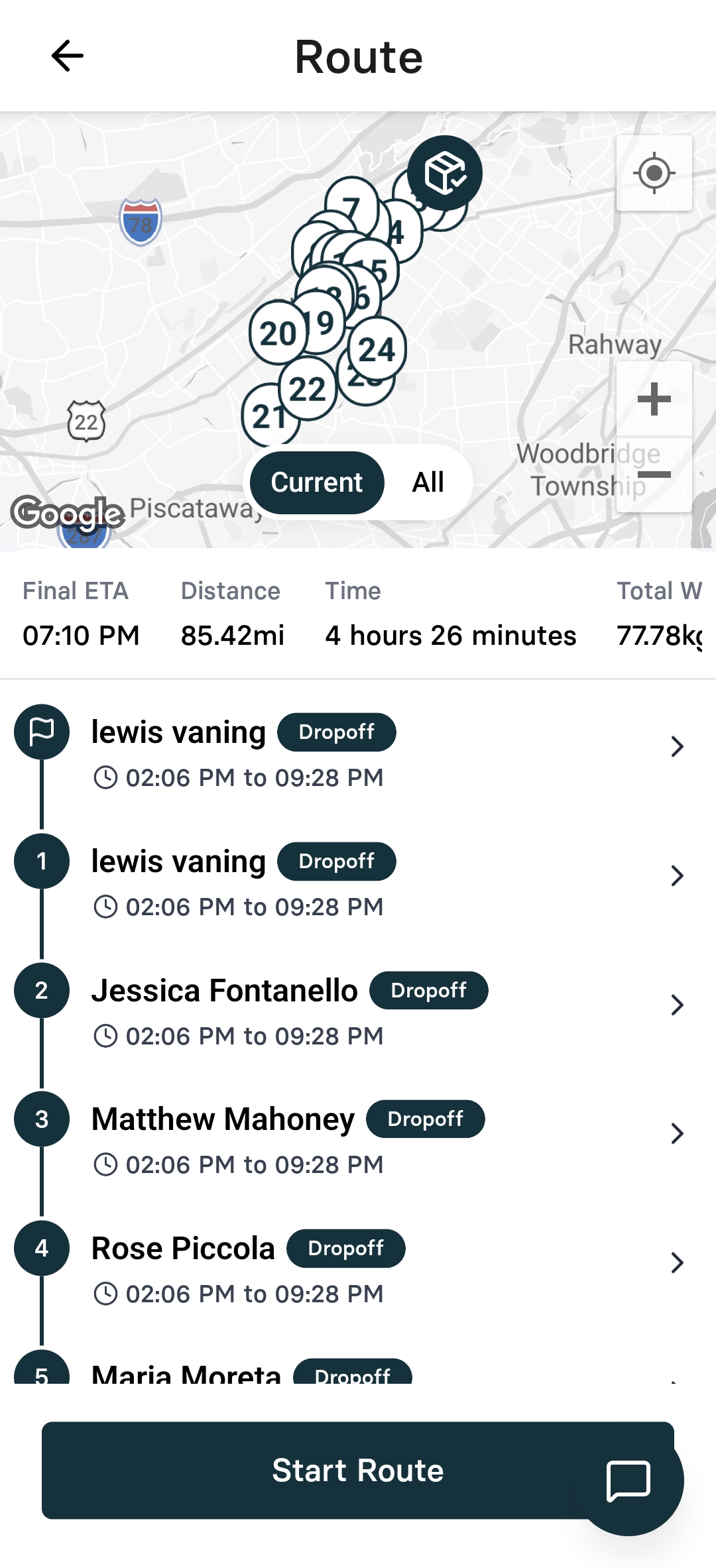 |
Starting the Split
You can split a batch at any time, including during pickup in order to break up a large batch.
The Split Batch Dialog will open | 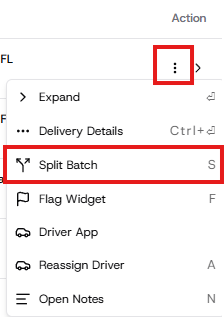 |
Split the Batch
Select the Split Mode you want
Split All - splits all remaining deliveries in the batch into single deliveries.
Manual Split - split into as many batches as you need
Manual Split
The first group is already created for you. Create as many groups as you need to split the batch into
Note: Only create groups for the new batches you are splitting. The original batch will remain intact with any deliveries you do not select to split, so there's no need to create a group for the deliveries that will remain in the original batch.
Open each Group and select the deliveries you want to split into the group.
Optionally, select the driver group and driver to apply to the new batch
Once you have selected the deliveries to split for each group, click Split Batch
The result will be a new Batch for each group you created.
Merging Routes
If you do not have the multi-selection checkboxes available on your dashboard, request activation from your Nash Supply Operations Manager.
On the dashboard, select the routes or jobs you want to merge.
Click the Merge button in the popup menu
