Creating Custom Last Mile Metrics Reports
Last updated: January 30, 2025
Generate insightful delivery analytics using Nash's Analytics tab. This guide shows you how to create, customize, and share reports that help optimize your delivery operations.
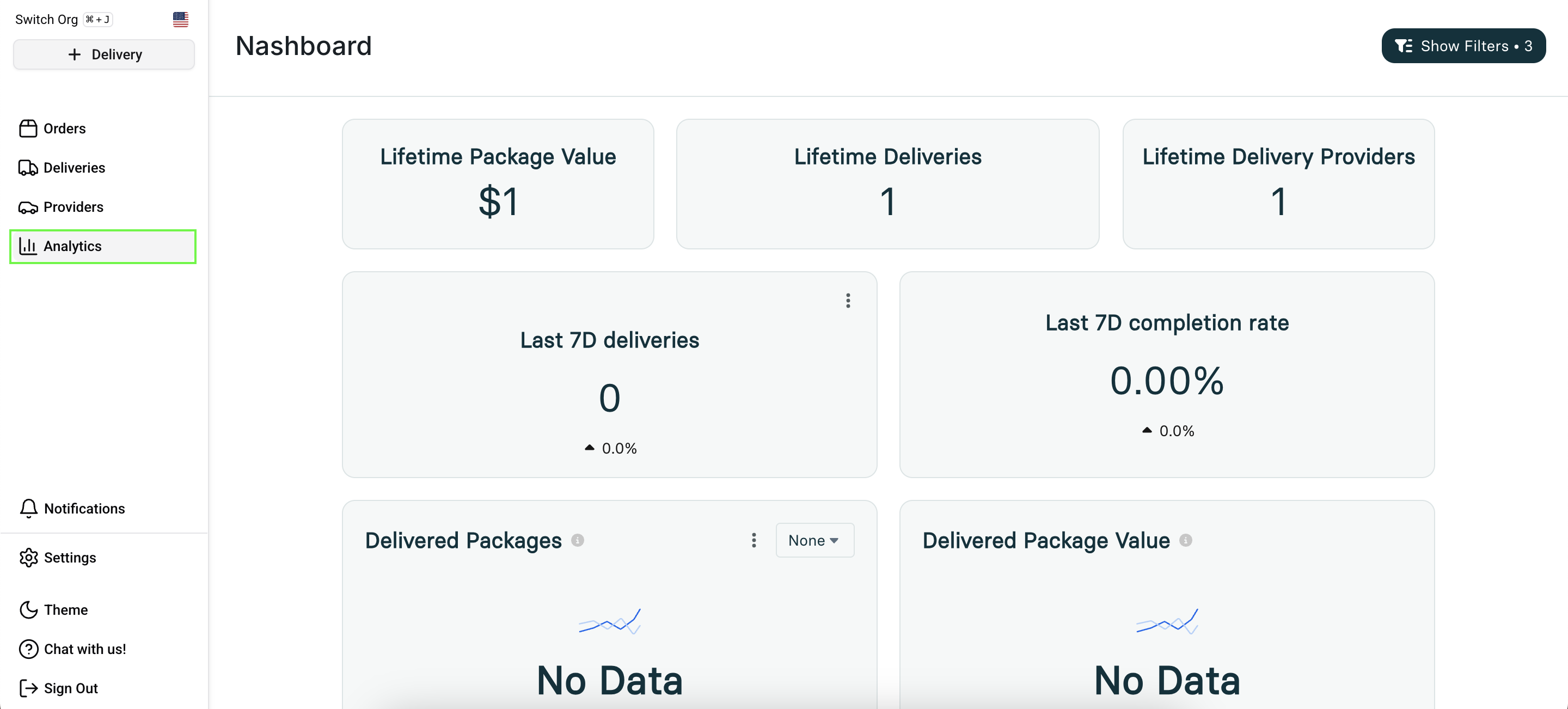
Accessing Analytics
Log in to your Nash account
Select the Analytics tab in the dashboard
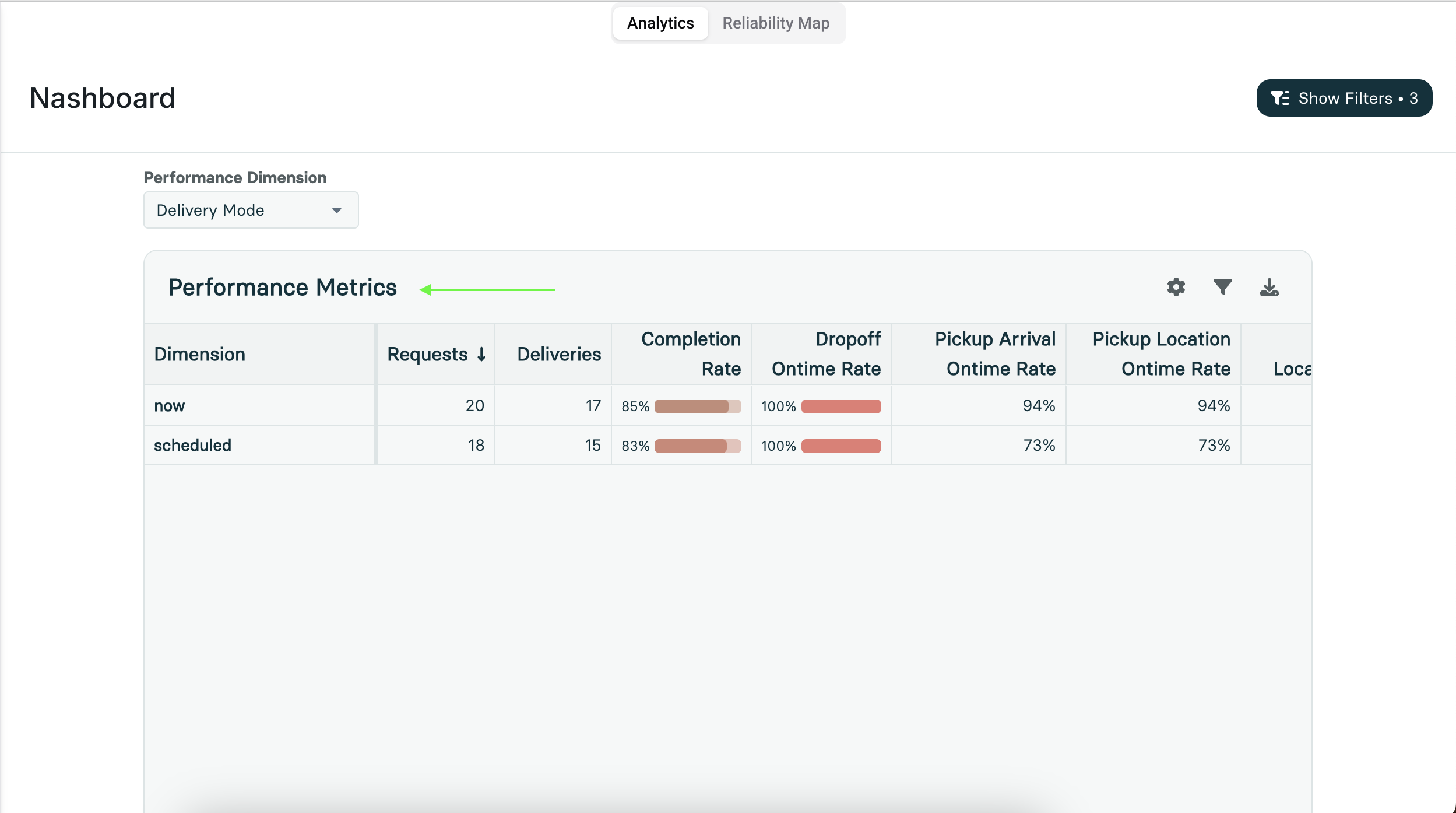
Scroll down to the Performance Metrics table
Customizing Your Report
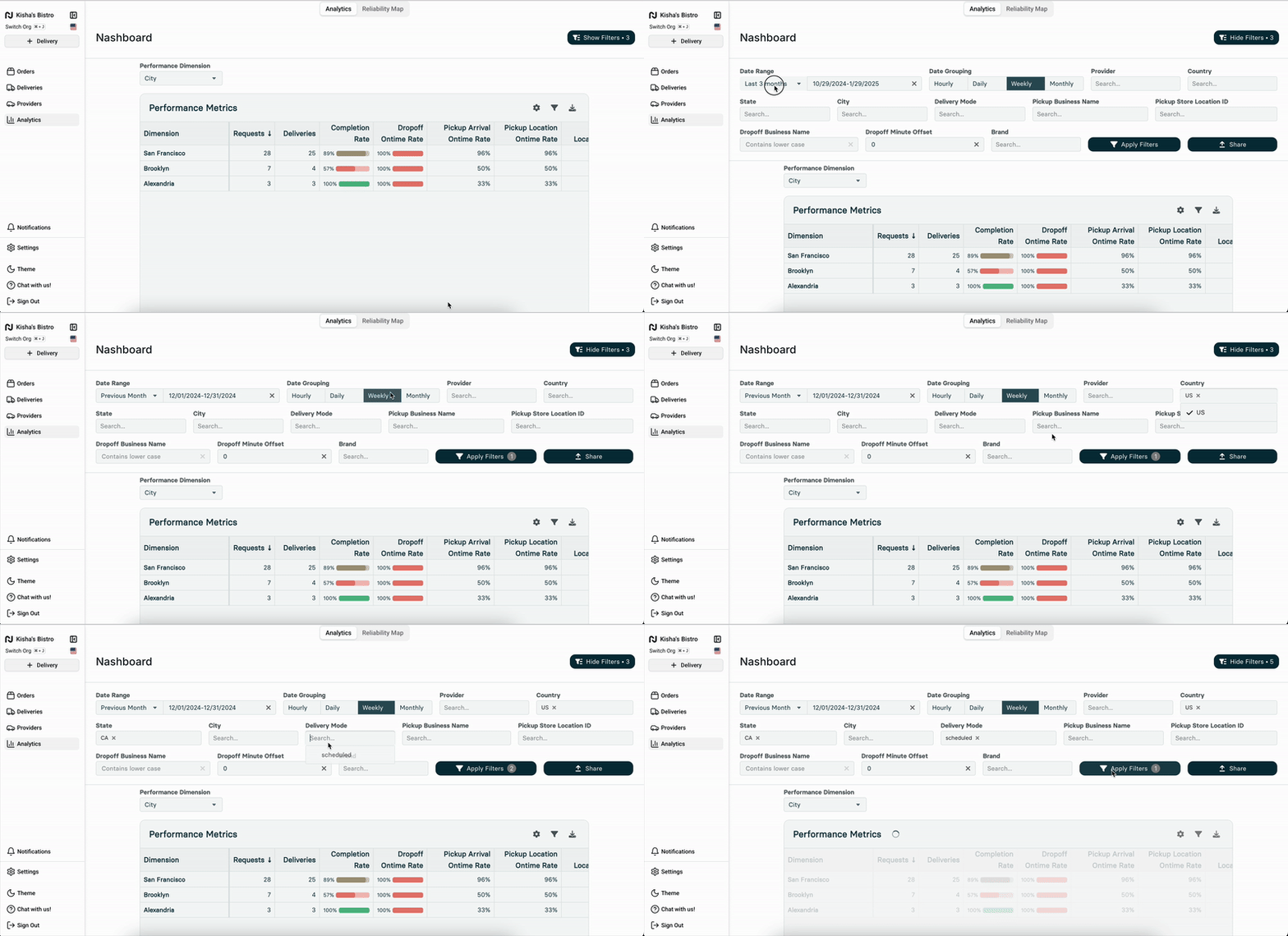
Select your preferred Performance Dimension
Date Range: Select your preferred analysis timeframe
Date Grouping: View data by day, week, or month
City: Filter by specific locations
Pickup Business Name: Track package origins
Dropoff Business Name: Monitor delivery destinations
Click Apply Filters to refresh your data view.
Available Metrics
Choose from these key performance indicators, or many others available in the Nash Portal:
Delivered Packages: Track successful delivery counts
Package Completion Rate: Monitor delivery success rates
Active Pickup Locations: View unique collection points
Active Dropoff Locations: Track delivery destinations
Delivered Package Value: Calculate total delivery value
Nash Reassigned Packages: Monitor delivery reassignments
Downloading Reports
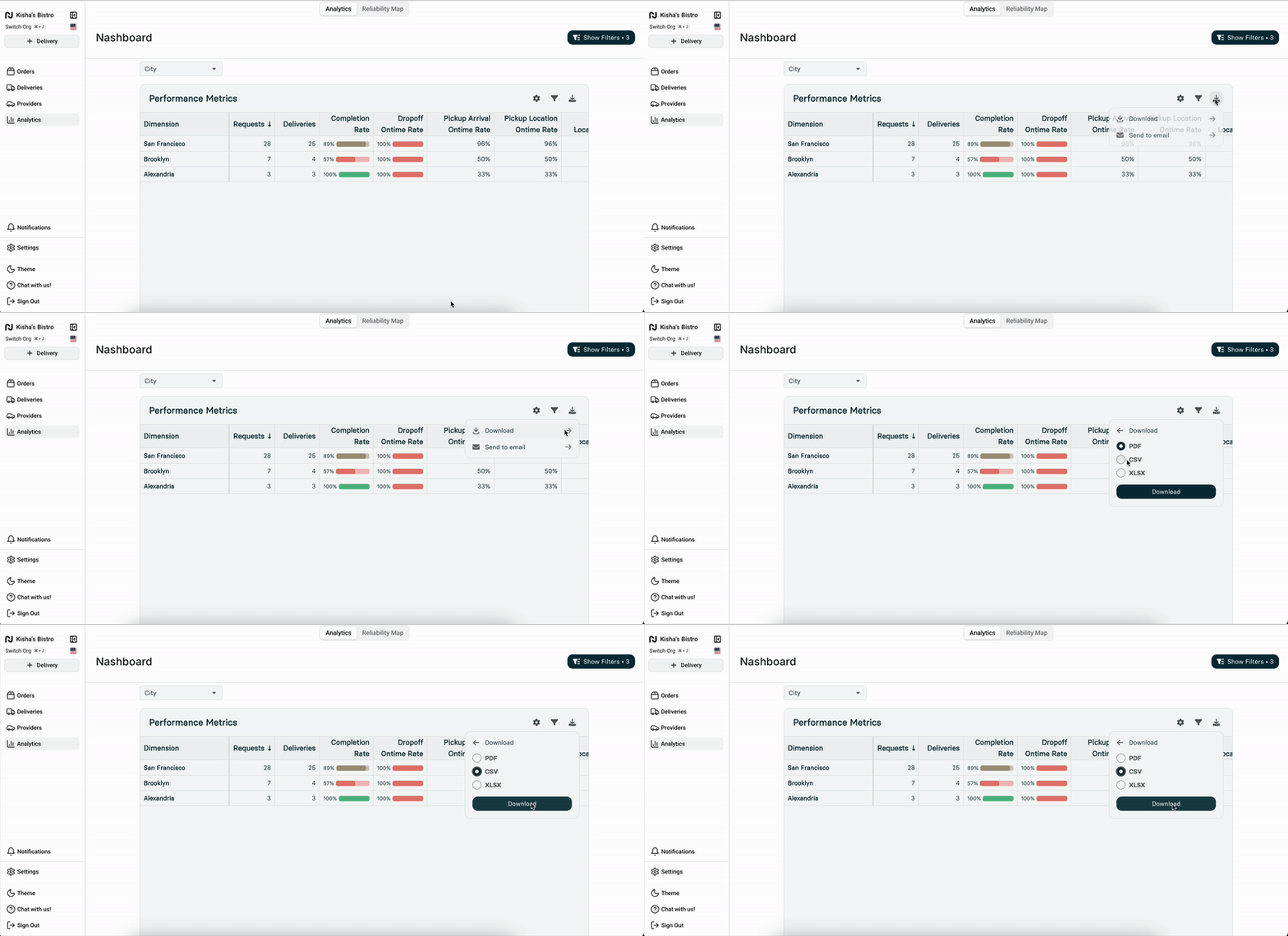
To export your customized report:
Locate the Download button next to your data
Click to receive a CSV file compatible with Excel or Google Sheets
Sharing Reports
To distribute your findings:
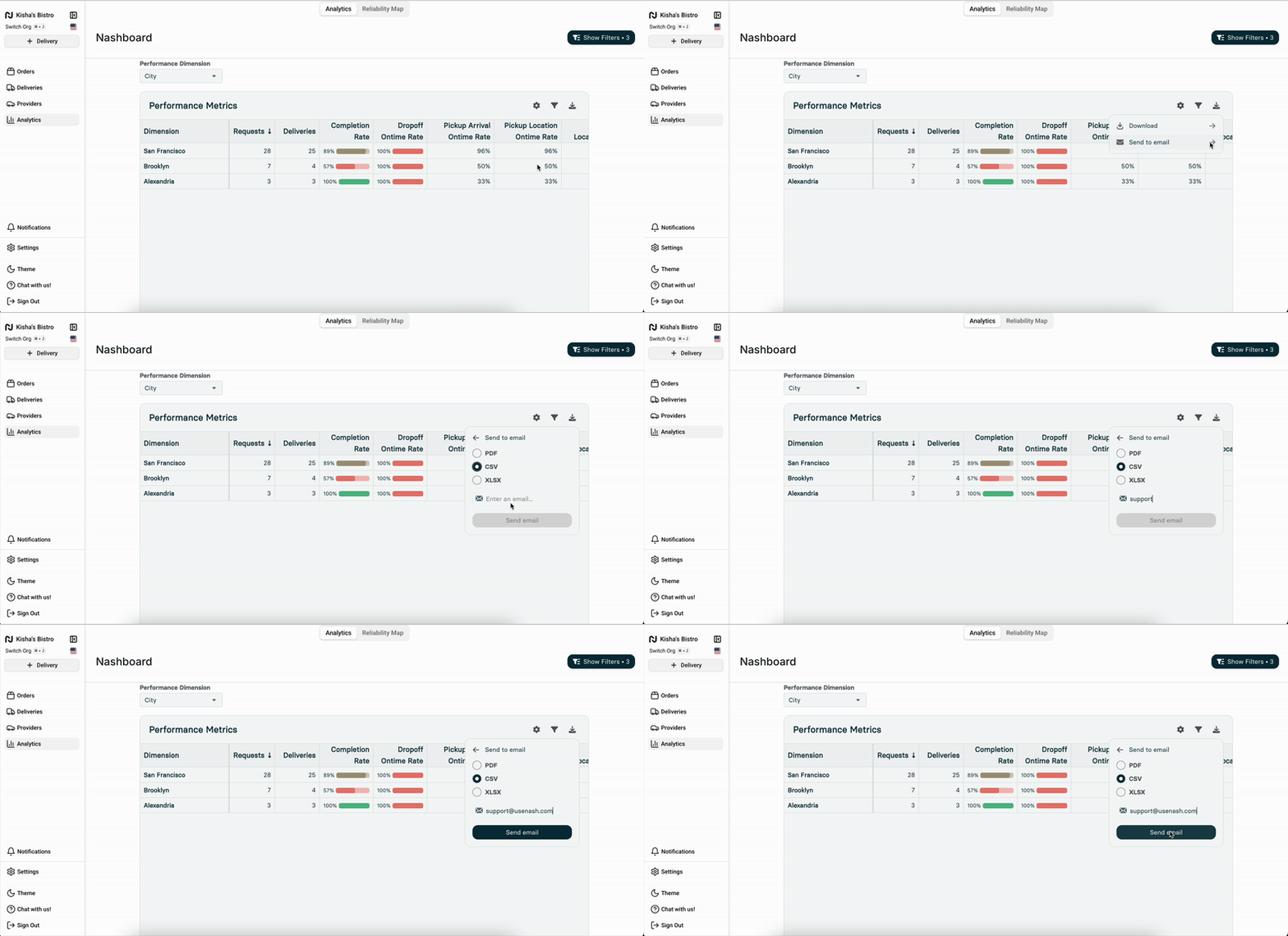
Click Download button next to your data
Enter recipient email address
Add an optional message
Click Send to distribute