Edit User Permissions in Nash
Last updated: January 30, 2025
Adjusting user permissions in Nash ensures your team operates efficiently as roles evolve. Only users with Owner or Admin roles can edit permissions.
How to Edit User Permissions
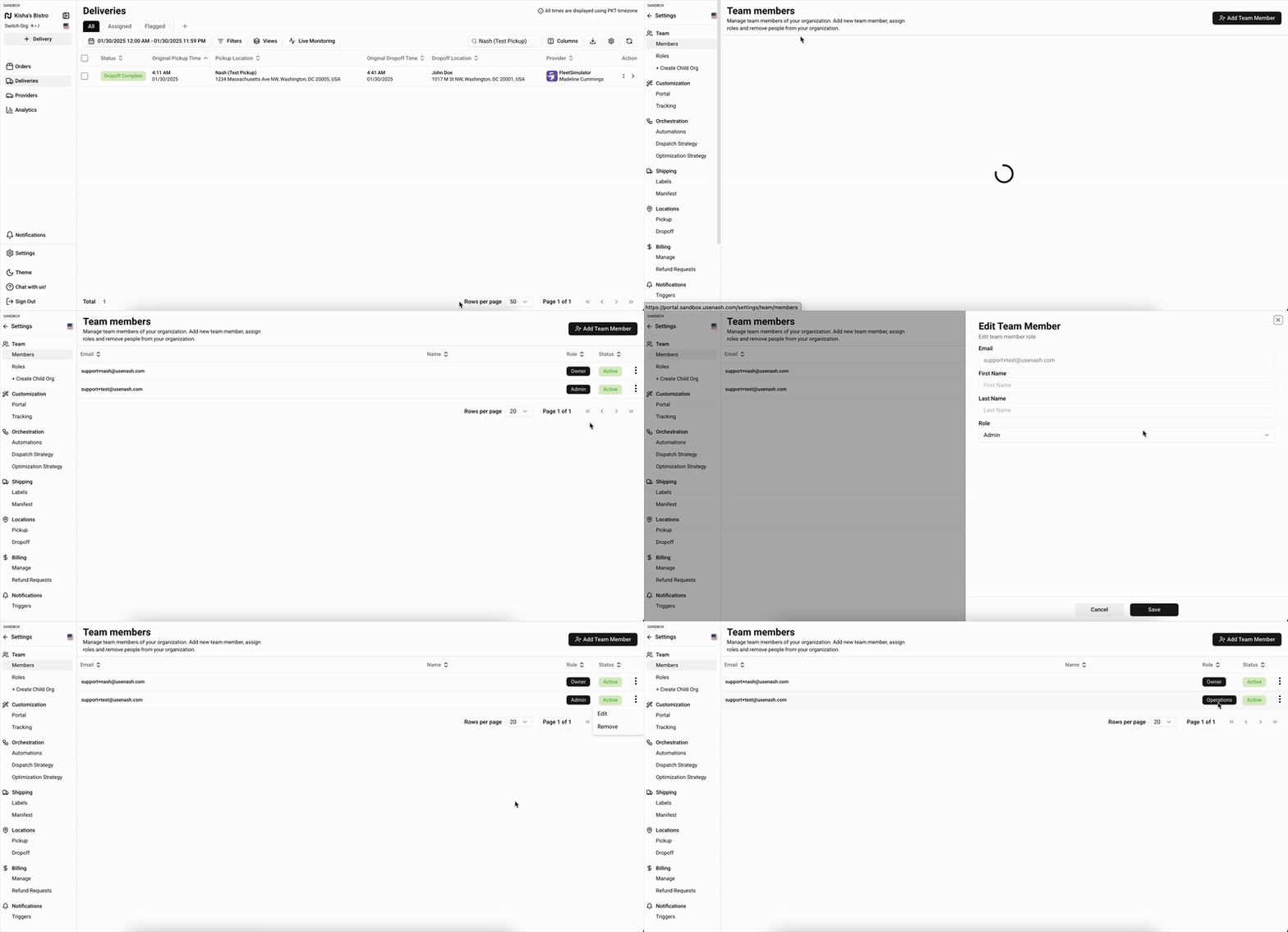
Navigate to Settings > Team > Members.
Find the user whose permissions you want to change.
Select the ellipsis under the Options column next to their name.
Choose the new role (Admin or Operations).
Select Save to apply the changes.
How to Create Custom Roles
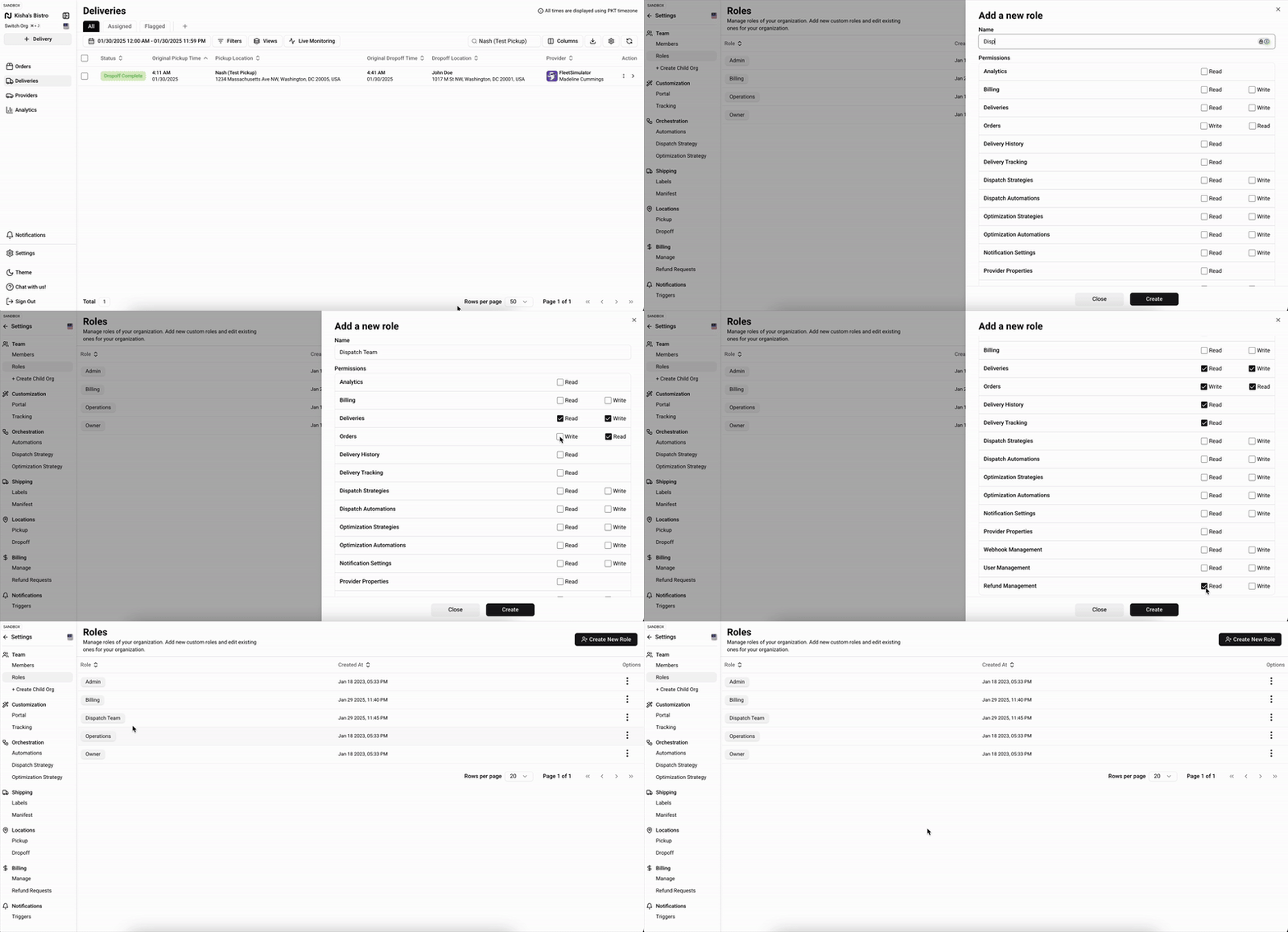
To create custom roles with specific permissions, go to Settings > Team > Roles.
For immediate updates, ask team members to log out and log back in after their permissions are changed.
Available Roles and Permissions
Owner: Full access to all features. Only one Owner is allowed per account.
Admin: Nearly identical to Owner, with access to team management, settings, and billing.
Operations: Limited to core functionalities such as the history dashboard, order entry, and analytics.
For example:
Admins can manage user accounts and access billing information.
Operations users can generate reports but cannot manage users or settings.
Editing Email Addresses
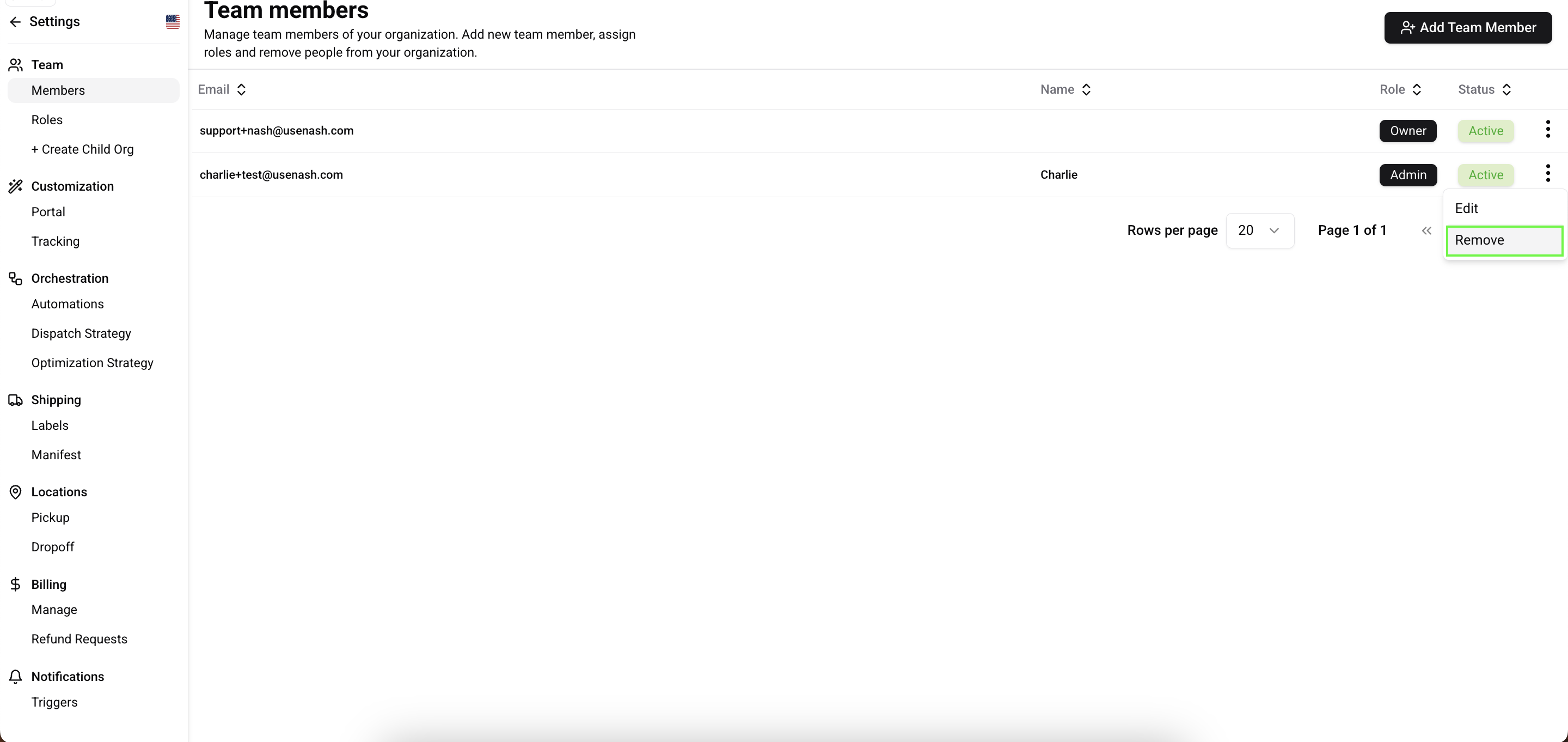
Email addresses associated with user accounts cannot be edited. To update an email, delete the existing account and create a new one with the correct email.
Changing the Owner’s Role
To change the account Owner, contact Nash Support for assistance.