Access Your Nash Support Tickets Through the Customer Portal
Last updated: October 29, 2025
The customer portal provides direct access to view and manage your support tickets with Nash, allowing you to track ticket status and communicate with the Nash support team without needing to send emails.
Receive Your Portal Access Link
You can receive access to the customer portal in two ways:
A Nash representative may send you a direct customer portal link
You may receive a portal invitation via email from the Nash team
Regardless of which method you receive, the authentication steps below apply to both.
Authenticate Your Account
The first time you access the customer portal, you'll need to verify your identity. This is a one-time process to ensure your ticket information remains secure.
Initial Portal Access
Select the customer portal link provided by Nash (either from your representative or from the email invitation)
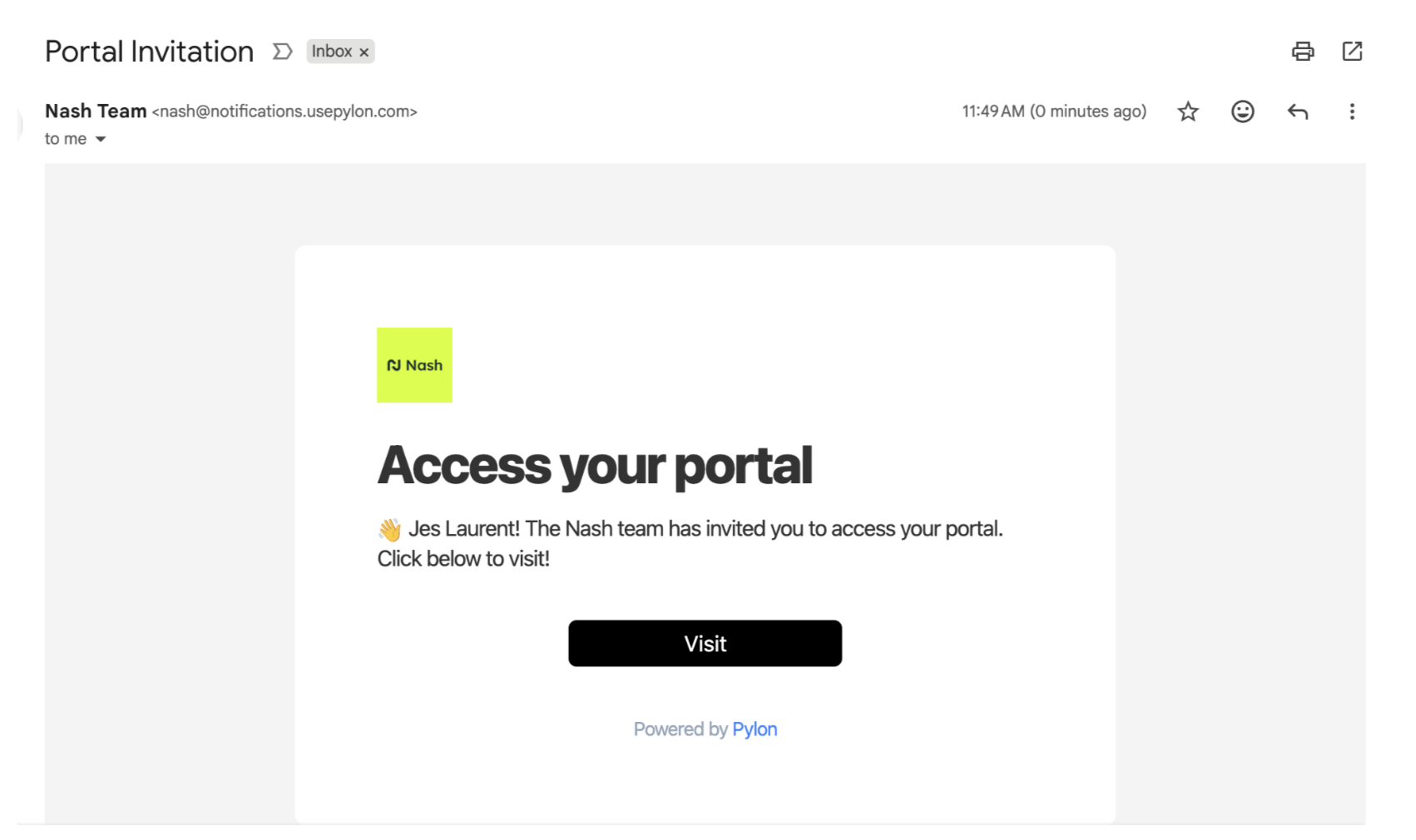
Check your email for a message from The Nash Team with the subject line "Portal Invitation: Access Your Portal"
Select the Visit Portal button in the email
Complete Security Verification
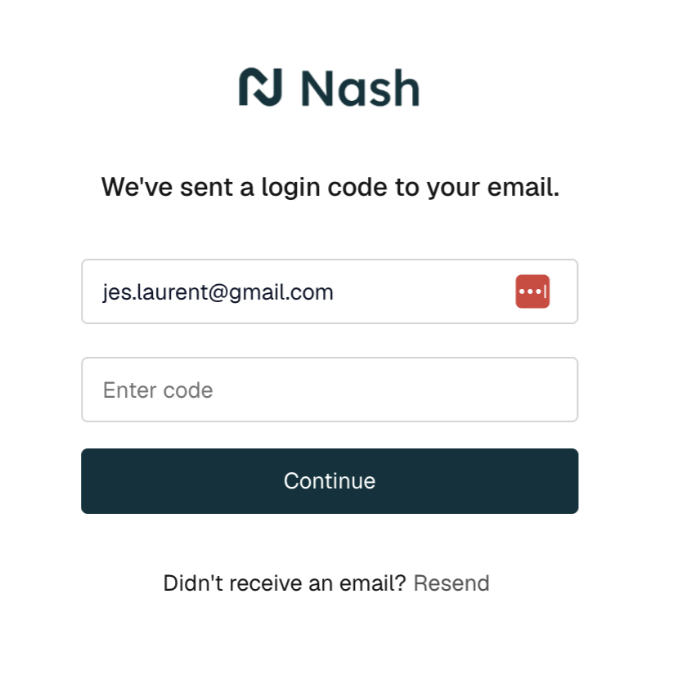
You'll be prompted to enter a security token for portal verification
Check your email for a six-digit verification code (this typically arrives within 30 seconds to one minute)
Enter the six-digit code in the verification field
Your access is now verified
You will not need to complete this verification process again on future visits to the portal.
Understand Your Ticket Access
Your ticket visibility depends on your assigned portal role:
Admin users can view all support tickets opened by anyone at your organization
Member users can only view tickets they personally created
If you need your access level changed, contact your Nash representative.
Navigate Your Support Tickets
Tickets in the portal are organized into three categories to help you quickly understand their status:
On Nash: Nash is actively working on these tickets
On You: These tickets are waiting for your response or additional information
Closed: These tickets have been resolved
View Ticket Details and History
Select any ticket from the list
A side panel opens displaying the complete conversation history
Review all previous communications between your team and Nash support
Respond to Support Tickets
You can communicate directly with Nash support through the portal:
Open the ticket you want to update
Scroll to the bottom of the conversation
Type your message or additional information in the text field
Your message is sent directly to the Nash support team
Close Resolved Tickets
When an issue has been resolved, you can close the ticket yourself:
Open the ticket you want to close
Locate the Status field under Issue Details
Change the status from Open to Closed. You do not need to do this, the Nash team keeps tickets tidy for you