Add a User
Last updated: June 16, 2026
As your business grows, you may need to add new members to your Nash account. This guide will walk you through the process of adding a team member and assigning them the appropriate role.
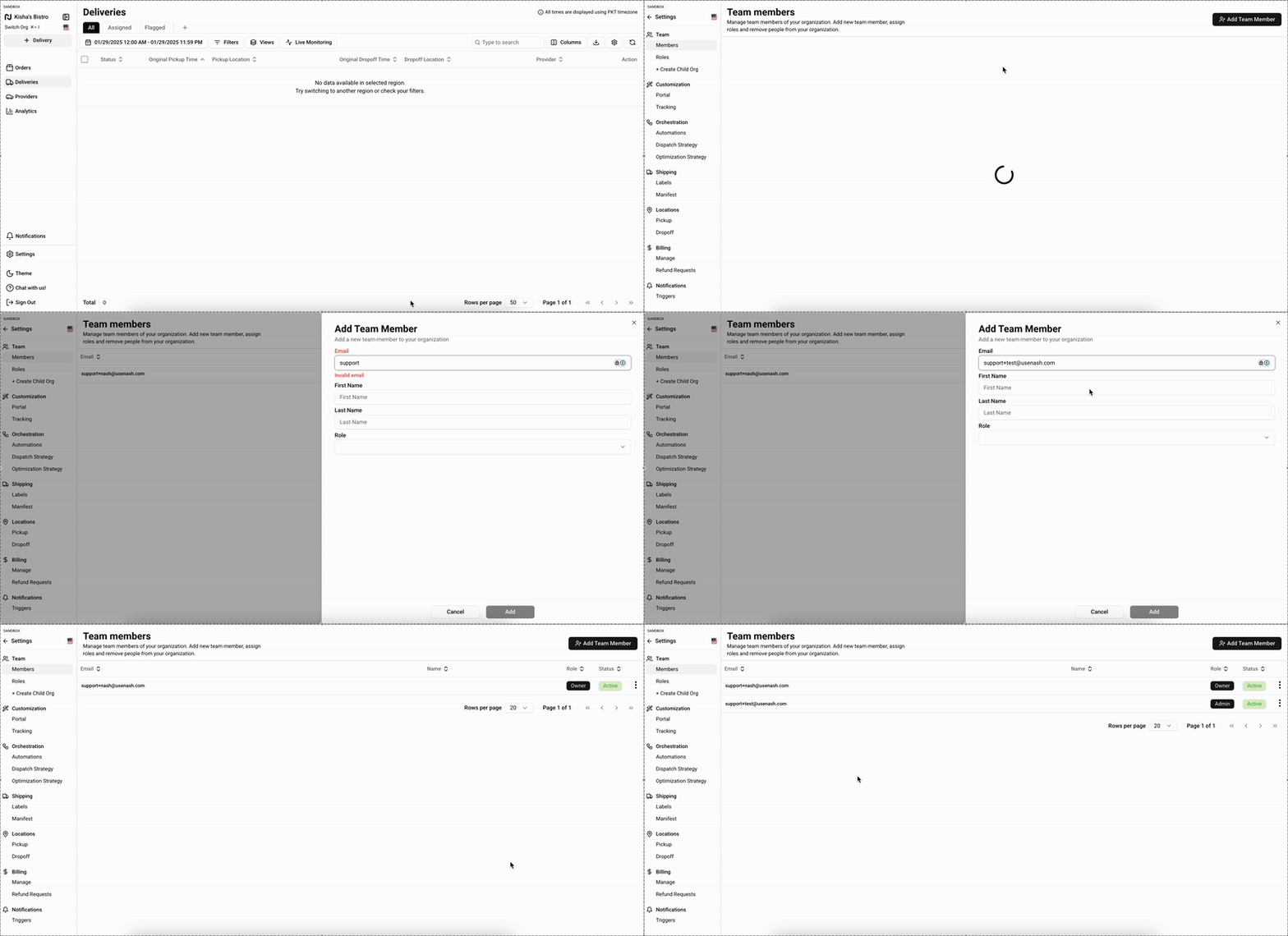
Add a Team Member to Nash
Click Settings > Users
Click + Add Team Member button in the top right-hand corner
Enter the new member's email address & First/Last Name
Select an appropriate role:
Operations: Access to dashboard, order entry, and analytics
Admin: Operations capabilities plus team and billing management
Owner: Full access to all features and settings. You can only have one owner per account. If the owner of the account needs to change, they'll need to contact Nash Support.
Click Add to complete
The new member will receive a welcome email to set up their account. If they already have a Nash account, they'll see your organization as an option at their next login.