How to Enable Nash Delivery Customization
Last updated: May 7, 2026
Nash Delivery Customization allows you to hide all non-local delivery options at checkout if the buyer chooses local delivery in the widget on the cart page. By following the steps below, you can ensure that your customers have a seamless and customized delivery experience.
Delivery Customization is not possible for Merchants without Carrier API
1. Install the Shopify GraphiQL App
If you haven’t already, install the Shopify GraphiQL app on your store.
Even if you’ve installed it before, reinstalling ensures the necessary access scopes are selected.
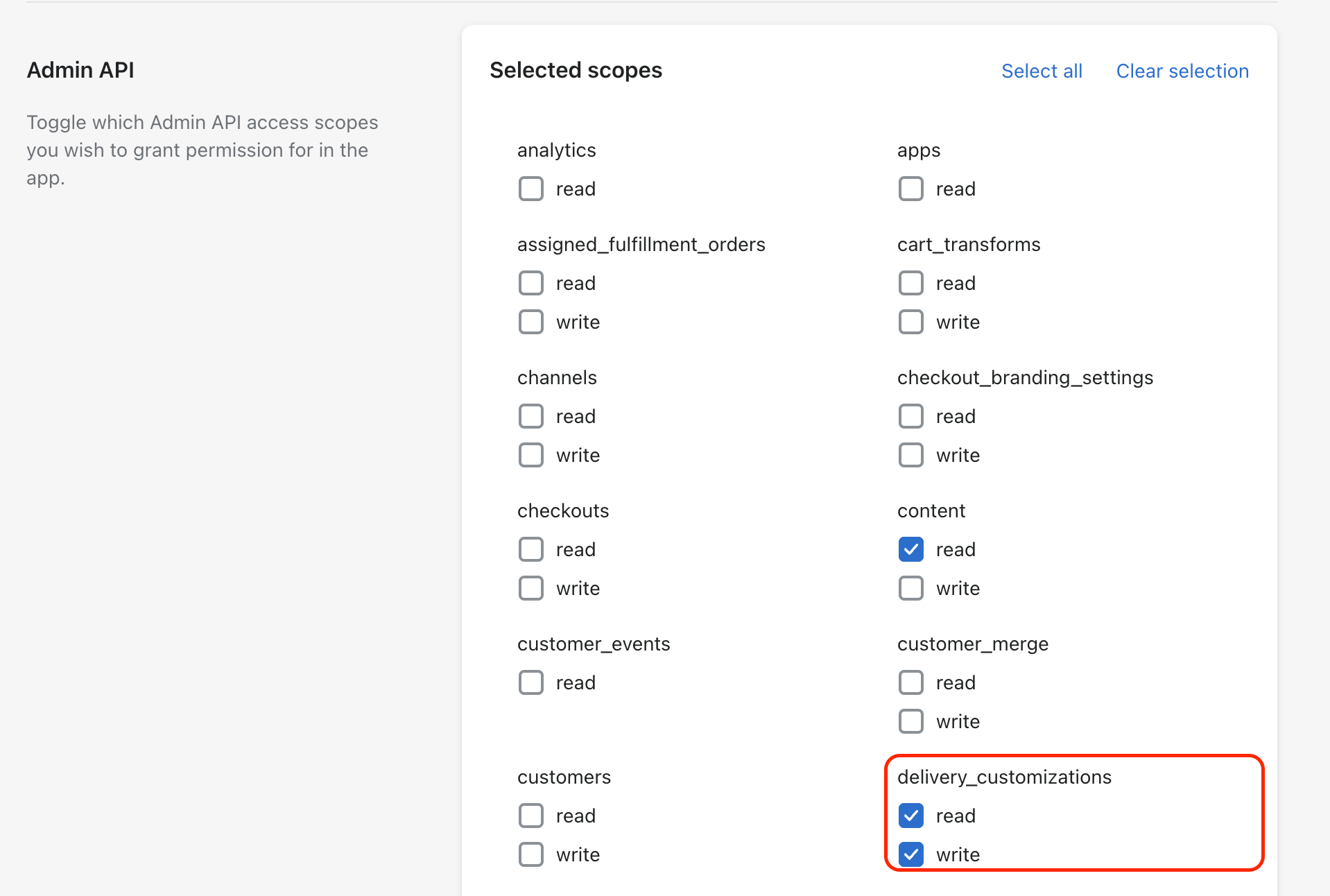
While installing, make sure to select the following Admin API access scopes:
delivery_customizations → read
delivery_customizations → write
2. Run the Customization Mutation
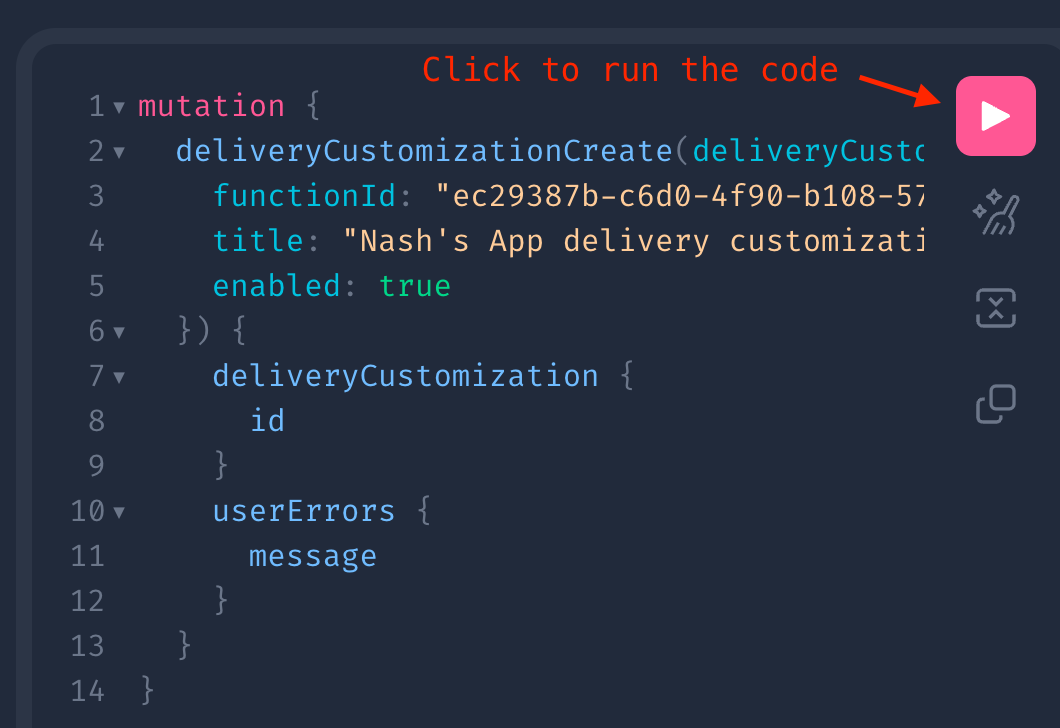
Once the GraphiQL app is installed, open it and paste the following GraphQL code into the editor:
mutation {
deliveryCustomizationCreate(deliveryCustomization:{
    functionId: "ec29387b-c6d0-4f90-b108-57c1b2cae45b"
    title: "Nash's App delivery customization"
    enabled: true
  }) {
    deliveryCustomization {
      id
    }
    userErrors {
      message
    }
  }
}
Then, scroll down and click the pink “Run” button below the code editor to execute the mutation.
✅ What Happens Next?
Once the mutation runs successfully, your delivery customization will be live! 🎉
You can check if it’s working by heading to your Online Store and walking through the checkout flow. When a customer selects Local Delivery in the cart widget, only the Local Delivery shipping rate should appear during checkout.
To manage or remove this customization later, go to:
Shopify Admin > Settings > Shipping and Delivery. Look for the Delivery Customizations section to manage or delete it.

If you run into any issues feel free to reach out to Nash Support.