How delivery windows work
Last updated: October 12, 2026
A delivery window is a bookable time slot a shopper picks at checkout — a Saturday 9:00–11:00 morning slot, a weekday evening slot — that commits your organization to getting that order delivered in that window. This article is about what a window actually is underneath that checkout choice: the levers it carries, how many orders one can hold, how Nash decides which windows an order is offered, and what happens to that promise once a shopper books it. For where you find and build windows in the portal, start with delivery windows overview; this page is the model behind those screens.
Note
This is a beta feature. Reach out to Nash if you'd like early access.
How it works
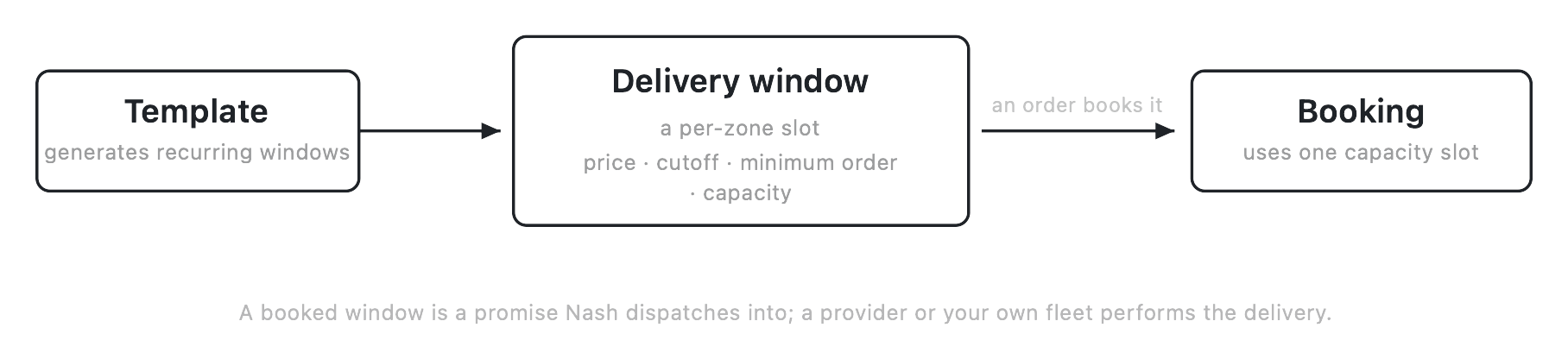
A delivery window is a recurring, capacity-limited time slot anchored to a zone — the geographic area a store delivers to. It isn't one appointment floating on its own; it's a slot that belongs to a specific zone's weekly calendar and repeats forward from there. (A few setups anchor windows to a store location directly instead, but the shape is identical.) The whole feature is one loop, and it's worth seeing the shape before the parts:
- You define windows — one at a time on a zone's weekly calendar, or, far more often, from a template that generates them in bulk across zones and keeps generating them forward on a rolling horizon.
- A shopper's order needs a window. Nash doesn't hand over the whole calendar — it works out which windows that order is eligible for and offers only those.
- The shopper books one. Booking reserves the slot and consumes one of the window's capacity units for that date.
- The booked window becomes a promise. The order flows into dispatch like any other: Nash gathers quotes and hands the job to a provider or your own fleet, and they carry it out inside the window you promised.
The engine that ties those steps together is capacity — the quota for how many orders a slot can hold. Every other lever decides whether an order qualifies for a window; capacity decides how many qualifying orders you'll accept into it. That's what makes a window a commitment rather than an open-ended offer.
What a delivery window carries
What makes a window more than a time range is the set of levers it carries. Each one is something you set on the window (or on the template that generates it), and each one shapes whether — and to whom — the window is offered.
| Lever | What it does | Default / when unset |
|---|---|---|
| Price | What the window costs the shopper, in your organization's currency. A window can be free or carry a premium — an express evening slot might cost more than a mid-week one. | No fee unless you set one |
| Cutoff | The book-by time. After a window's cutoff passes it can no longer be booked, even if it still has room — this is how you stop same-slot bookings arriving with no time to fulfil them. | No cutoff — bookable up to the window itself |
| Minimum order value | The smallest order that qualifies. An order under that floor isn't offered the window at all. | No minimum — any order value qualifies |
| Allow-tags | Required tags an order must carry to be eligible. If a window carries allow-tags, an order has to bring all of them — an allow-list, not a preference. | No tag requirement — tags don't gate the window |
| Capacity | The quota. A window holds only so many orders; once that many have booked it, the slot is full and stops being offered, however well an order meets every other condition. | Unlimited — the slot never fills |
| Requirements | A gated field that restricts the window to deliveries meeting requirements you've configured. Availability varies by organization. | Off / not shown for most organizations |
Capacity is the backbone of the object. Leave it unset and the window is effectively bottomless — it accepts every qualifying order, rarely what you want for a real slot. Set it to match what your fleet and providers can genuinely deliver in that window, and the slot protects itself: it fills to the number you can handle and then closes, so you're never promising more deliveries in a window than you can move. Changing capacity changes only how many more orders the window will take from that point — it doesn't unbook orders already on it, so lowering capacity below what's already booked leaves the slot full until bookings drop.
Note
Requirements is a separate beta field that appears for some organizations. Reach out to Nash if you'd like early access. Its absence means it isn't turned on for your organization, not that no requirements apply.
Building windows
There are two ways windows get onto a zone's calendar, and they suit different jobs.
The first is by hand: you open a zone's weekly calendar and place a single window on it, filling in its time range and its levers. This is the right tool for a one-off — a holiday slot, an extra window to cover a busy Saturday. Windows you place by hand can be dragged to reposition, and edited or deleted individually.
The second is a template, and it's how most of a schedule actually gets built. A template describes a repeating slot — which days of the week it runs, what local time, its price, capacity, and minimum — and generates the individual windows for the zones you attach it to (it can target more than one zone at once). Two settings control how far that generation reaches:
- A cadence — how often the template creates windows, for example every week.
- A rolling horizon — how far ahead to keep the calendar filled, for example up to twelve weeks out.
As time moves forward, the horizon rolls with it: Nash keeps generating new windows ahead of today so the calendar never runs dry. That generation happens on Nash's side, on the schedule your template sets — there's no operator "recompute" or "regenerate" button to press. You define the template once, and the windows keep appearing on the rolling horizon without you doing anything further. Templates can also override existing windows when they regenerate, or leave hand-placed ones untouched. For the field-by-field how-to on both paths, see schedule delivery windows with templates.
How a window gets offered
When an order needs a delivery window, Nash matches it against the calendar rather than showing everything. Every window has to clear the same set of checks, applied roughly in this order:
- The order's dropoff falls in the zone's coverage. A window belongs to a zone; an order delivered outside that zone's area sees none of its windows.
- The store-to-zone link is active for that date. The connection between a pickup store and a zone can itself be scheduled to be live only over certain dates; a window whose store-to-zone link isn't active for the requested date won't be offered.
- The window occurrence is active for that date. The recurring window has to fall on the requested date (not a skipped exception date) and be turned on.
- The window has capacity left. If the slot has filled to its maximum for that date, it drops out of the offer.
- The order meets the minimum order value. An order below the window's floor doesn't qualify.
- The order carries the required allow-tags. If the window has allow-tags, the order has to bring all of them.
- The cutoff hasn't passed. A window whose book-by time is already behind us is closed to new bookings.
A window that clears every check is eligible and gets offered. A window that misses even one sits out — and Nash can say why, from a fixed, self-naming set of reasons:
| Reason a window sits out | What it means | Where to fix it |
|---|---|---|
| Not enough capacity remaining | The slot has filled to its maximum for that date | Raise the window's capacity, or point the order at another slot |
| Minimum order value not met | The order is under the window's floor | Lower the window's minimum, or the order has to grow |
| All allow-list tags not present | The order is missing one or more required tags | Add the tags to the order, or drop them from the window |
| Cutoff time has passed | The book-by time is already behind us | Nothing to fix — the slot is closed; offer an earlier-cutoff or later window |
Tip
When a window you expected to see isn't offered, the cause is almost always one of the checks above — and each one names itself. Work down the list: coverage first, then the store-to-zone link, then capacity for that date, then value, tags, and cutoff. Because capacity and cutoff are counted per date, a window that's missing for today can be wide open for tomorrow.
This matching decides which sellable slots an order can be promised into. It is not the same thing as your organization's operating hours — the store-hours and outside-hours dispatch behavior set under Settings ▸ Organization (set operating hours and dispatch behavior). Operating hours govern when dispatch runs relative to when your store is open; delivery windows govern which time slots a shopper can book.
Important
Delivery windows and operating hours are two separate controls, and it's easy to conflate them because both are about time. A window can be perfectly eligible and still not dispatch the way you expect if your operating-hours behavior is holding or rescheduling work outside store hours — and operating hours will never make a full or past-cutoff window bookable. When timing behaves oddly, check both, and keep straight which one you're actually changing.
Booking consumes capacity
Eligibility is only the offer. The moment that turns a window from an option into a commitment is the booking. When a window is booked for an order it reserves the slot; when that booking is confirmed the reservation is locked in. Both a booked and a confirmed order count against the window — each uses up a unit of that window's capacity — and a booking that's later revoked returns its unit to the slot.
Capacity is counted per date — per occurrence of the recurring window — so booking the Tuesday slot this week draws down this Tuesday's count, not next Tuesday's. Each recurrence of a repeating window carries its own capacity.
| Booking state | What it means | Effect on capacity |
|---|---|---|
| Offered / eligible | The window is in the order's offer; nothing is reserved yet | None — the slot still counts as open |
| Booked | The window is reserved for the order | Uses one (or more) of the window's units for that date |
| Confirmed | The booking is locked in for the order | Still uses its unit(s) — booked and confirmed both consume |
| Revoked | The booking has been released | Returns its unit(s) to the window for that date |
This is the loop that makes capacity self-enforcing: windows are offered while they have room, each booking consumes a unit of it, and when bookings reach the maximum the slot goes full for that date. You never have to close a full window by hand — the counting does it.
Note
One order does not always equal one unit. Most bookings draw down a single unit, but a single order can reserve more than one of a window's capacity units — so a slot can read as full with fewer orders than its number suggests. Capacity is a count of reserved units, not strictly a count of orders.
Edge cases and failure modes
Most of what "goes wrong" with a delivery window isn't a fault — it's a lever doing exactly what you set it to. Knowing which one, and what the operator sees, is the whole game.
- Capacity exhaustion. The slot has taken as many orders as its maximum allows for a date and closes for that date. Matching orders stop being offered it, with "not enough capacity remaining" as the reason — the design working, not a bug. To take more, raise the window's capacity, but only if your fleet and providers can genuinely deliver the extra. The other dates on the same recurring window are unaffected.
- Cutoff passed. Once the book-by time is behind us the window closes to new bookings even if it has room. There's nothing to recover — the slot is intentionally closed. Offer a later window, or set more generous cutoffs if you're routinely losing bookable slots to the clock.
- The horizon runs dry. Windows come from templates that generate forward on a rolling horizon. If a template is deleted, paused, or its horizon is set too short, the calendar can run out of future windows and orders past that point find nothing to book. The fix is on the template, not the window: check that it still runs and that its horizon reaches far enough ahead.
- Route-capacity feasibility. Some batched or routed setups apply an extra check on top of the count: even a window with room can be held back if a matching order can't be fit into a feasible route for that slot. Availability varies by organization; where it's on, a window can sit out for a feasibility reason rather than a plain capacity one.
- A booked window still needs to dispatch. Booking reserves the slot; it doesn't drive the delivery. If a booked order later can't find a provider or own-fleet driver, that's a dispatch problem, worked on the order, not a window problem — the window did its job by making the promise. See how dispatch works.
Pricing and tag rules, at a glance
Beyond the fixed price you set on a window, Nash offers a separate engine that can raise or lower a window's price, or attach a tag to it, automatically as a calculated metric you're tracking crosses tiers you define — so a window can price up as it fills, for instance. This is a further capability layered on top of the model above, not part of the base window. It's covered on its own in delivery window pricing and tag rules, with every field defined in the delivery window rules reference — this page won't re-document it.
Note
Pricing and tag rules are a separate beta capability that appears for some organizations. Reach out to Nash if you'd like early access.
What affects this
A window doesn't decide anything on its own — what it's offered for, and what happens after it's booked, is shaped by objects set elsewhere. None of these live on the window itself.
| Object | Where it's set | What it does here |
|---|---|---|
| The window's levers | The window itself (or the template that generated it) | Price, cutoff, minimum order value, allow-tags, capacity, and Requirements — the conditions every order is checked against |
| Zones & coverage | Control ▸ Zones — see manage zones and define zone coverage | Whether an order's dropoff falls in the zone a window belongs to, deciding if the zone's windows are in the running at all |
| Locations | Control ▸ Locations — see manage locations | The pickup store a zone belongs to, and whether the store-to-zone link is active for the requested date |
| Templates | The Templates tab — see schedule delivery windows with templates | Generate the recurring windows across zones on a rolling horizon, stamping each one's levers, and keep the calendar filled forward |
| Pricing and tag rules | The Pricing Rules / Tag Rules tabs — see delivery window pricing and tag rules | Adjust a window's price or attach a tag dynamically as a metric crosses tiers you set — a separate, further-gated capability |
| Operating hours | Settings ▸ Organization — see set operating hours and dispatch behavior | Govern when dispatch runs relative to store hours — a separate control that can still affect timing on a booked window |
| Order attributes | The order itself | Its dropoff, value, and tags feed directly into which windows it's eligible for |
Two windows that look identically configured can still be offered differently if the zones, store links, or bookings behind them differ.
Note
Some of these objects live in areas that are available depending on your organization's setup. If you don't see one, it may not be turned on for your organization — reach out to Nash.
The last thing to carry out of all this is what a booked window actually is. It's a promise to the customer — a commitment that their order will be delivered in the slot they chose, at the price they saw. It is not Nash performing that delivery. Once a window is booked, the order flows into dispatch like any other: Nash gathers quotes and hands the job to a provider or your own fleet, and they carry it out within the window you promised. The window is the commitment and the quote surface; see how dispatch works for how the order gets assigned, and deliveries overview for the delivery it becomes. Nash dispatches into the window it promised; the provider or your own fleet performs the delivery.