Logging Into the Nash Driver App
Last updated: April 3, 2026
This guide provides step-by-step instructions for accessing the Nash TMS Driver App for the first time and granting the necessary permissions.
Step 1: Download the Nash Driver App (iOS & Android)
You can download the app using either method:
Tap the download link sent to you via text message, or
Open the App Store (iOS) or Google Play Store (Android) and search for Nash Driver App
Once the app is installed, open it to begin setup.
Step 2: Logging Into the Nash Driver App (iOS & Android)
Drivers can log in using either their Phone Number or Email. Both login methods connect to the same driver/courier profile, ensuring you see the same data regardless of how you sign in.
Option A: Log In Using Phone Number
Open the Nash Driver App.
Enter your mobile number.
You’ll receive a six-digit verification code via SMS.
Enter the code and tap Continue.
If prompted, select the organization you’ll be completing deliveries for.
This login process works the same on both iOS and Android devices.
Option B: Log In for the first time using Email Address
Ensure an Email Is Added to Your Profile. If not, contact your dispatcher to add to your profile.
Open the Nash Driver App.
Tap Log In.
Enter your email address.
Select Forgot / Reset Password.
Check your email for the password reset link.
Create a new password.
Return to the app and log in using your email and new password.
Important Notes
Phone Number and Email logins both access the same driver account
No data or delivery history is lost when switching login methods
Login steps and screens are consistent across iOS and Android
Select Your Organization
If you work with multiple providers, you will need to select which organization to access. If you only work with one provider, this step will be skipped automatically.
Review the list of Provider Organizations.
Select the organization you want to access.
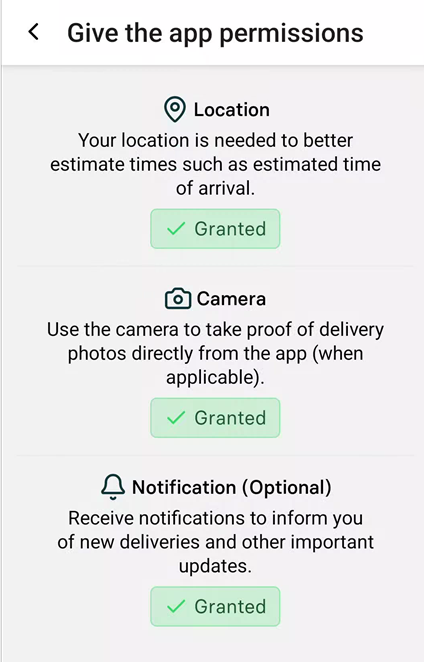
Step 3: Allow Required Permissions (iOS & Android)
When prompted, allow the required permissions on your device. These may include:
Location access
Camera access
Notifications
These permissions are required to:
Complete pickups and drop-offs
Upload photos or scan barcodes
Receive alerts for new delivery offers
Permission screens may look slightly different on iOS and Android, but the required permissions are the same.
The app requires specific permissions to function properly. Without these permissions, you will not be able to accept or fulfill orders.
|  |
Other Important Links
You’re Ready to Deliver
You’re now ready to complete deliveries using the Nash Driver App on either iOS or Android. Follow the in-app instructions carefully and ensure permissions remain enabled for the best experience.