How tracking and notifications work
Last updated: August 31, 2026
Tracking and notifications look like two separate areas of the portal — one where you style a tracking page, another where you set up messages — but they're really two halves of a single thing: what your customer experiences while a delivery is running. A notification is the message that reaches the customer; the tracking page is what they open when they tap the link inside it. Both are standing configuration you set up once and then let run against every delivery. This article is the map of how the two fit together — the trigger model behind every notification, the Nash-hosted page behind every tracking link, and how both hang off the same delivery status changes you already watch on the Deliveries page.
One thing to hold onto before the detail: Nash dispatches the delivery, and a provider or your own fleet carries it out. Everything on this page is about reporting on that delivery to your customer — telling them where it is and letting them watch it move. Nash doesn't perform the drive; tracking and notifications are how the customer sees the drive happen.
The two halves
The split is worth stating plainly, because the portal keeps the two surfaces in different places and it's easy to think of them as unrelated.
- Notifications are what reaches the customer — an SMS, an email, or a message on another channel, sent automatically when something happens to their delivery. "Your order has been picked up." "Your driver is nearby." These are outbound messages you never send by hand; you set up the rules once, and Nash fires them as deliveries move.
- The tracking page is what the customer opens — a live, Nash-hosted web page showing a map, an ETA, the delivery's current status, and the driver's location as Nash surfaces it. It updates on its own as the delivery progresses, so the customer can keep an eye on it without contacting you.
The reason to treat them as one system is the link between them: the tracking page reaches the customer only because a notification carries the link to it. A notification includes a tracking-link variable in its message body, that variable resolves to the customer's own tracking-page URL, and tapping it opens the page. Publish a tracking page but never send a notification that carries its link, and the page exists but no customer ever finds it. In practice you build both, and the notification is the delivery mechanism for the page.
Who sees what is simple: your customer — the delivery recipient — sees both. You, the operator, configure both from the portal but don't receive them yourself, and because these are standing configuration, you're deciding once what every customer will get rather than doing anything per delivery.
The notification trigger model
Every customer notification comes from a trigger — a single rule that answers three questions at once: when to fire, what to say, and where to send it. That's the core concept, and it's the reason notifications live here under tracking rather than in Automate. A trigger is:
- An event or condition — the thing that makes the trigger fire. Most often this is a delivery status transition: the delivery reaches a particular status and the trigger trips. Other conditions exist too — an ETA slipping past a promised time, a delivery sitting stuck in one status too long, a proof-of-delivery photo being uploaded — but the mental model is the same: an event on the delivery meets a condition you set.
- A message — the text the customer receives, written with
{{token}}variables that fill in per delivery. You type a body like "Hi {{customer.first_name}}, your delivery has been picked up — track it here {{job_tracking_link}}", and at send time Nash substitutes the real name, the real link, and whatever other tokens you've used. The message is free text with an autocomplete list of available tokens; there's no formatting toolbar, because any styling is applied downstream by each channel when the message goes out. - One or more channels — where the message goes. A trigger sends to one or more destinations, and each destination is a bundle of channels and recipients (an SMS to the customer's phone, an email to their address, a Slack message to your ops team, and so on).
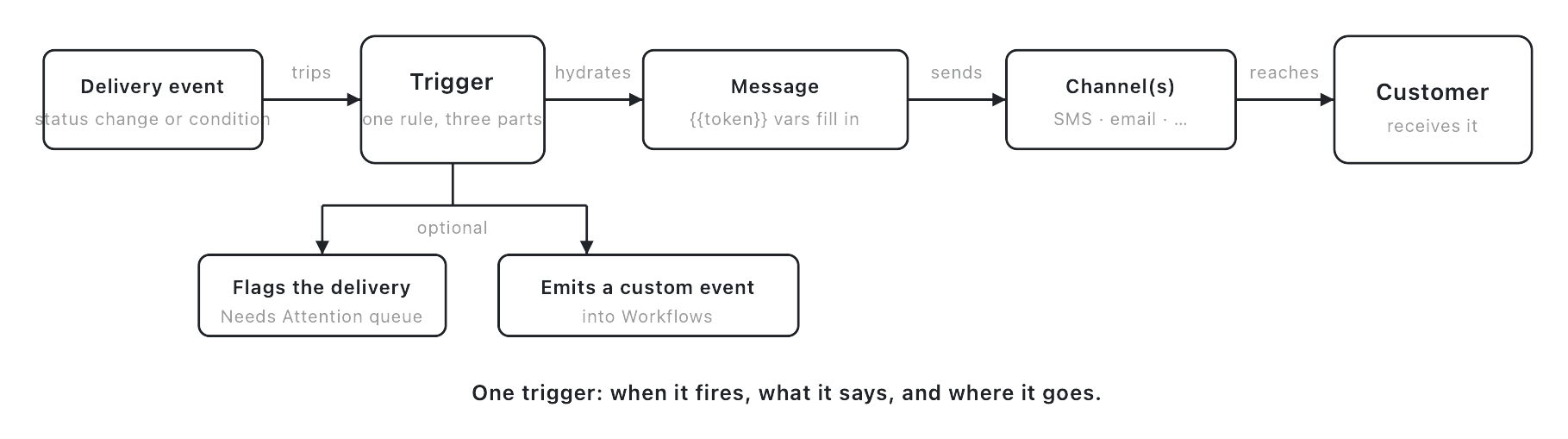
The thing that makes a trigger a single concept, not three, is that all three parts are authored in one inseparable drawer. When you open a trigger, the firing condition, the message, and the destinations are all fields of the same form — you can't set up "when it fires" in one place and "what it says" in another. Turning off the message even clears the destinations, because a message with nowhere to go isn't a thing the product lets you build. This is exactly why triggers are documented alongside the tracking page and not in Automate: the firing, the wording, and the routing are one decision, made in one spot.
Note
A trigger's message is optional. Because the firing condition, the message, and the destinations are one form, a trigger can do less than send a message: it can fire only to flag the delivery for attention (surfacing it in your Needs Attention queue), or only to emit a custom event with no customer-facing message at all. The common case is a message to the customer, but "a trigger" is really "a rule that reacts to a delivery event," and messaging is one of the things it can do.
Two of those side effects are worth naming because they reach past notifications into the rest of the platform. A trigger can flag the delivery — the same Needs Attention flags you work elsewhere — so a condition like "stuck too long" can both text the customer and raise an internal flag for your team. And a trigger can emit a custom event into the Workflows engine, which is the bridge between this surface and Automate: the trigger notices the delivery event, and a workflow you've built reacts to it with automation. Cross that bridge only for automation — the notification itself, the message and the channel, stays here. The full catalog of firing events and message tokens is in the notification events and variables reference, and the step-by-step for building one is in create a notification trigger.
There's no fixed list of "default" notifications you have to accept as-is; you decide which conditions matter to your customers and build a trigger for each. The firing conditions are organized into a handful of categories — delivery events, driver and location conditions, status conditions, refund requests, and order events — so you can find the one you want; order-event triggers are available only when the orders feature is on for your organization.
The tracking page and the link
The tracking page is a Nash-hosted web page — its own URL, at
tracking.usenash.com/{id}, where the {id} is the customer's specific
delivery. It's the live view: a map, the drop-off ETA, the current status,
the delivery's event timeline, proof of delivery once it's captured, and the
driver's live location and contact details as Nash surfaces them. It updates
on its own as the delivery moves, so once the customer has the link they can
watch without asking you for updates.
A few things about how it works shape how you should think about it:
- The link is the key. There's no login and no password on a tracking page — the long, unguessable id in the URL is what grants access. Someone with the link can see the page; someone without it can't reach it. That's the whole access model, which is why the link goes only to the customer, inside their notification.
- It expires. A tracking link stays live for a window after the delivery finishes — about two weeks by default — and then stops resolving. The page is meant for the life of a delivery, not as a permanent record.
- You control what's on it. The page is field-by-field configurable per organization: you decide whether it shows the map, the pickup and drop-off details, the ETA, the driver's information and live location, proof of delivery, the event timeline, and more. Whatever you turn off simply doesn't appear on the customer's page.


Note
Several fields on the tracking page carry privacy defaults that are on — the recipient's last name, the recipient's phone number, and your organization's name all show by default, and the driver's surname is automatically abbreviated to an initial. Out of the box, then, the defaults expose customer-identifying fields while only the driver's surname is shortened — it's worth checking what a customer sees before you change anything. The field-by-field breakdown is in customize your tracking page and the tracking page components reference.
It's easy to confuse the Nash-hosted tracking page with a different page a customer might also see: the carrier's own tracking page. When a delivery runs on an outside provider, that provider often publishes its own tracking URL from its own systems — a page you don't style and can't configure. The Nash-hosted page described here is separate: it's the one you set up, consistent across whichever provider or own-fleet driver is carrying the delivery, and it's the one your notifications link to. Keep the two straight — the page in this article is always the Nash-hosted one.
And to name the thing it isn't: the tracking link is not a short-link or URL-shortener product. "Sending a tracking link" means putting the tracking-page variable into a notification message and letting Nash resolve it to the customer's page — not minting a shortened marketing URL. The mechanics of getting the link to a customer live in send customers a tracking link.
Some richer tracking-page capabilities — an AI tracking agent that answers customer questions on the page, or removing the "Powered by Nash" branding — are premium extras that Nash sets up for your organization rather than switches you flip yourself; reach out to Nash if you want them.
Channels: where a notification can go
A notification's destinations decide where the message lands, and the set of channels is broader than the SMS-and-email that covers most delivery updates. The channels you configure yourself are:
- SMS and email — the everyday customer-facing channels for delivery updates.
- Slack and Microsoft Teams — for routing a delivery event to your own team's workspace rather than to the customer.
- WhatsApp — another customer messaging channel where you use it.
- Webhook — a machine destination, for sending the event to a system of your own.
- In-app and Nash Agent push — notifications inside the Nash surfaces your people use.
Alongside those, there are additional channels — such as automated voice calls and help-desk handoffs — that Nash sets up for you rather than ones you turn on yourself. Treat them the same way as the premium tracking features: they exist, but they're arranged with Nash rather than self-served, so reach out if you need one. Managing destinations — bundling channels and recipients into reusable groups a trigger can send to — is covered in manage notification destinations and the setup walkthrough in set up customer notifications.
The shape is what matters here: a single trigger can send to several channels at once, so the same delivery event can quietly inform your ops team on Slack while it tells your customer over SMS. The event is one thing; where it goes is a routing choice you make per trigger.
How this ties to the delivery lifecycle
The thread running through everything above is that the events a notification fires on are delivery status transitions — the very same status changes that drive the badge you watch on the Deliveries page and the status shown on the customer's tracking page. There aren't two separate timelines. There's one delivery moving through its statuses, and both halves of this system read off it: a notification trigger fires as the delivery crosses a status you chose, and the tracking page reflects that same status the moment it changes.
That's what makes the two halves genuinely one system. A delivery gets picked up — a single event — and, if you've set it up that way, that one event trips a trigger that texts the customer, the message carries the link to the tracking page, and the tracking page already shows the picked-up status when they open it. The status change is the shared source of truth; tracking shows it, notifications announce it.
Because of that, the delivery lifecycle itself is the thing to understand next if you want to choose which moments deserve a notification. The status vocabulary — what the real statuses are, in what order a healthy delivery passes through them, and which ones are exceptions — is documented in full in how deliveries work and enumerated in the delivery status reference. Those pages are the map of the events available to fire on; this page is the map of what happens when they do.
Important
When you decide which status changes to notify on, you're deciding what your customer experiences as the delivery runs — but you're not changing the delivery itself. Nash still dispatches the work and a provider or your own fleet still carries it; tracking and notifications only report on it. The tracking page shows the driver's location that Nash surfaces, and a notification announces a status Nash observed — neither makes Nash the party performing the delivery.