How deliveries work
Last updated: October 12, 2026
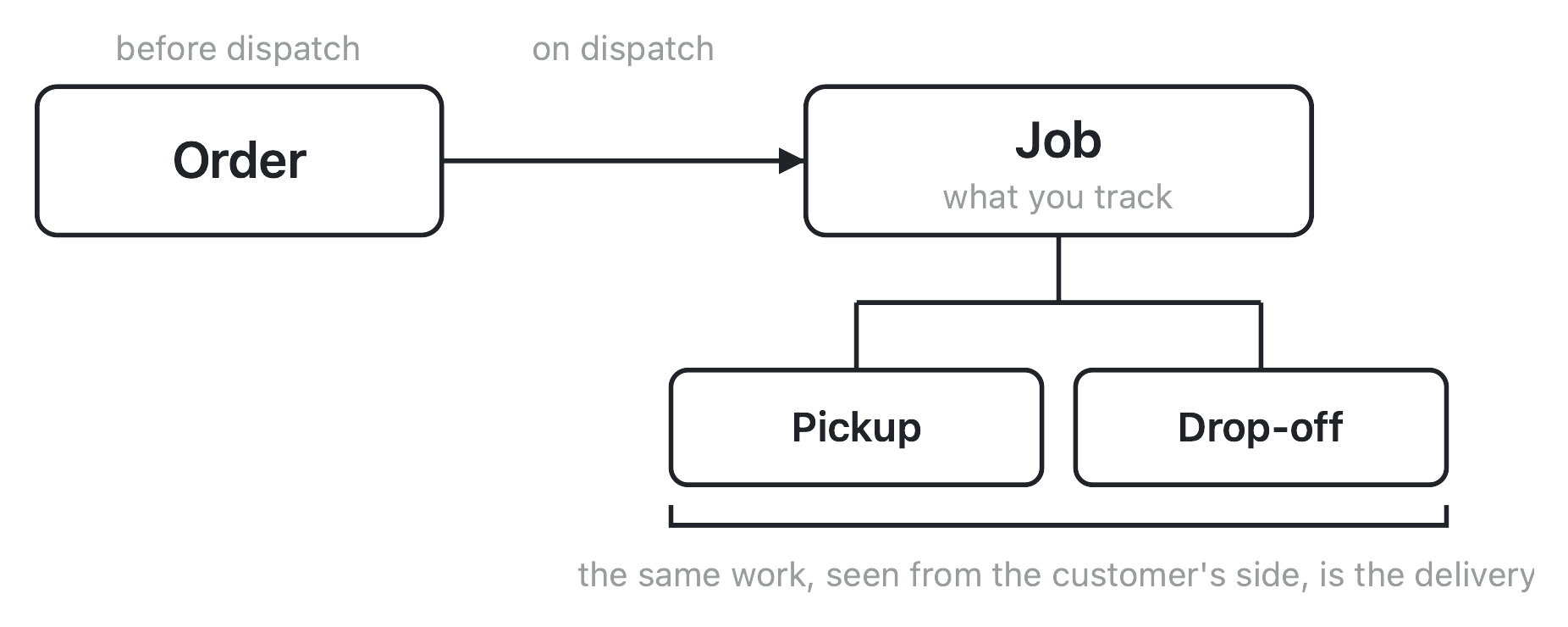
A delivery is a dispatched job, seen from the customer's side. "Job" and "delivery" aren't two different things you manage — they're the same unit of dispatched work, named from two seats: the job is what Nash tracks, the delivery is what your customer watches move toward them. That single fact is the thread running through everything below: why the row on the Deliveries page has both a Job ID and a Delivery ID, why the status badge you watch isn't the only status in the system, and why "reschedule" isn't really its own action. Start there, and the rest follows.
How it works
Trace the chain from the beginning: order → job → task → delivery. An order is a request — a pickup, a drop-off, and the items moving between them — that hasn't been sent anywhere yet. Dispatching it is the action that commits it: Nash creates a job from the order, and the job is the unit that actually moves through delivery. A job breaks into one or more tasks, and a task is the concrete unit of work a provider or your own fleet carries out — a single pickup and a single drop-off, paired together. Once a task is actually assigned to a provider — a quote gets picked, a driver gets attached — it starts producing the tracking record your customer follows. That tracking record, the moving, trackable thing, is what "delivery" means day to day.
So when you open the Deliveries page, the row you're looking at, the job behind it, and the delivery it represents are the same object seen from three angles. There's no separate "delivery" record you manage independently of the job — assigning a delivery, editing a delivery, canceling a delivery are all actions on the job and its tasks, surfaced under the delivery-shaped language that matches what your customer sees.
Note
The portal does show two different IDs on a delivery's detail view — a Job ID, which is what you search by, and a separate Delivery ID underneath it. That second ID identifies one specific provider attempt, not the delivery as a whole — worth knowing exists, but not something to puzzle over day to day. The full breakdown of every ID on a delivery lives in the delivery fields reference.
A job usually carries one task, but it doesn't have to. Most deliveries are simple: one order, dispatched on its own, becomes a job with a single task — one pickup, one drop-off. But a job can also carry several tasks at once, most commonly because it was dispatched as part of a route: several orders grouped together and sent out as one run become one job with several tasks, one pair of pickup-and-drop-off per order on the route. Operators and the portal sometimes call this a batch job — it just means "a job with more than one order's worth of work on it," not a different kind of object you configure or manage separately. If you're grouping orders together before dispatch, that grouping mechanics — building the route, sequencing its stops, optimizing it — belongs to the route itself; see How routes work for that side of it. This article picks up once the work is already dispatched, whether it arrived as a single order or as part of a route.
One more layer worth naming, because it explains something you'll notice later: a task isn't necessarily assigned once and done. If a delivery gets reassigned to a different provider or driver, Nash doesn't edit the existing task in place — it spins up a new task and lets the earlier one go. That matters for the lifecycle section below, because it's the reason a single delivery can, behind the scenes, be the record of more than one attempt.
The delivery lifecycle
The status you watch day to day is the one on the delivery's badge — the customer-facing lifecycle. Moving roughly left to right, a healthy delivery passes through:
Created → Sent to provider → Driver assigned → Picked up → In transit → Dropped off
That's the spine, simplified from the more granular set of labels the portal actually shows (Pickup Enroute, Pickup Arrived, Dropoff Enroute, and so on are all real, finer-grained points along the same "in transit" and "picked up" stretch). The important thing isn't memorizing every label — it's knowing the direction of travel and where things can go wrong.
| Stage | What it means | Typical next step |
|---|---|---|
| Created | The task exists but hasn't gone to a provider yet | Sent to provider |
| Sent to provider | A provider (or your own fleet) has the job and hasn't yet attached a driver | Driver assigned |
| Driver assigned | A specific driver or courier is attached — the portal sometimes shows a delivery mid-way here as Not Assigned Driver when a provider has accepted but no driver is on it yet | Picked up |
| Picked up | The driver has collected the package from the pickup location | In transit |
| In transit | The package is moving toward the drop-off | Dropped off |
| Dropped off | The package has been delivered — this is the normal terminal state | — |
Not every delivery finishes that cleanly. A handful of branches sit off the main spine and can happen at nearly any point:
- Delayed — the delivery is running behind but still moving; not terminal, and not a dead end. It usually resolves back onto the spine.
- Failed — the delivery could not be completed.
- Returned — the package is on its way back rather than forward, most often after a failed drop-off.
- Expired — the delivery's window passed without the work ever being carried out.
- Canceled — and this one has several flavors depending on who canceled: by the customer, by the merchant, by Nash, or by the provider (including an automatic cancellation tied to a reassignment).
Dropped off, Failed, Returned, Expired, and every Canceled variant are terminal — once a delivery lands on one of them, its status stops moving and the portal locks further status edits. Delayed is the one exception on this list: it's a warning, not an ending, so a delayed delivery is still very much in play.
Note
There is no "Failed" branch that quietly disappears from your queue. Failed, Returned, and Canceled deliveries all stay visible and searchable — terminal means the status stops changing, not that the record goes away. Working through one of those is covered in cancel & recover deliveries.


Three vocabularies, one delivery
Here's where it's worth being precise, because the section header on this page — "the delivery lifecycle" — is genuinely doing double duty for three different things that can look like three different status systems if nobody ties them together. They aren't three systems. They're three views of the same underlying work, at three different levels of detail.
1. The badge status is the one you already read above — Created through Dropped off, plus the exception branches. This is what shows on the row and what drives the customer's tracking page. When someone asks "what status is this delivery in," this is the answer.
2. The task status is an internal layer underneath the badge, tracking the state of the specific attempt a provider or driver is working — created, running, completed, failed, canceled, and a couple of narrower states in between. You mostly don't see task status by name; the portal resolves the badge you see from the delivery status first, and only really needs task status because of the point made above: reassigning a delivery spins up a new task rather than editing the old one. So a delivery that's been reassigned once has two tasks behind it — the abandoned one and the current one — even though you only ever see a single badge status on the row. If you ever notice a "tasks to cancel" prompt while reassigning or canceling a delivery that's had more than one attempt, that's this layer surfacing — it's asking what to do with the earlier attempt, not creating new complexity for you to track.
3. Live Monitoring stages sit one level above the badge, not alongside it — a health overview that buckets deliveries into four coarse stages: Pending Assignment, Pending Pickup, Pending Dropoff, Dropoff Complete, and further tags each one On Time, At Risk, or Late based on how it's tracking against its expected timing. Read it as a rollup, not a fourth vocabulary: most of the fine-grained badge statuses above roll up into one of those four stages — the same way "Created," "Sent to provider," and "Not Assigned Driver" all fall inside "Pending Assignment" — while a few (Scheduled, In transit, Delayed, and the terminal branches) sit outside the panel entirely rather than forcing into a stage. The exact per-stage mapping is in the delivery status reference. Live Monitoring doesn't introduce new information about where a delivery is; it groups the badge statuses you already know into buckets built for scanning a whole fleet of deliveries at once, with the on-time/at-risk/late flag layered on top to flag which ones need attention.
Tip
If a number on Live Monitoring doesn't match what you'd expect from the badge statuses on the table, it's almost always because you're looking at the rollup, not the raw list — check which of the four stages a status falls under before assuming something's wrong. The full mapping from every badge status to its Live Monitoring stage lives in the delivery status reference.
Note
Live Monitoring is a health-overview surface, and availability varies by organization. If you don't see it, reach out to Nash about access rather than assuming something's misconfigured.
So: one delivery, three lenses. The badge tells you exactly where it is. The task status underneath explains why a reassigned delivery can carry more than one attempt. Live Monitoring rolls the badge up into a coarser view built for watching many deliveries at once. None of the three are competing sources of truth — they're the same status, at three different resolutions.
What changes after dispatch
A delivery's mutability follows the same shape you'd expect from the object model above: dispatch is a commitment, and commitments narrow what you can still change. It's a softer line than an order's — a delivery stays editable in a real sense after dispatch — but it's narrower than it looks, and it's worth being precise about exactly what "editable" covers.
Editing a delivery touches small fields, not a re-spec. The edit action on a dispatched delivery lets you change the tip, the delivery instructions, the package value and description, and the item count. That's the whole list. It's meaningfully different from editing an order before dispatch, where nearly everything is still in play — once work is a delivery, editing means adjusting the details around the job, not reshaping the job itself. One practical wrinkle: whether a delivery instruction actually reaches the driver can depend on the provider carrying it, since not every provider surfaces instructions the same way.
"Rescheduling" isn't a real, separate action — it's reassign plus edit. There's no button that moves a delivery's time the way you'd drag an appointment on a calendar. If you need to change when a delivery happens, what you're actually doing is reassigning it — picking a provider or driver again — and editing the delivery window as part of that reassignment. It looks like "updating the time" from the operator's side, and functionally it gets you there, but under the hood there's no standalone reschedule mutation; it's the same reassignment mechanics covered next, aimed at the delivery window instead of the provider.
Important
Don't go looking for a dedicated "reschedule" action on a delivery — there isn't one. If the delivery window needs to change, reassign the delivery and set the new window as part of that flow. Mechanically it's one operation, not two, even though it reads like two different intentions.
Reassigning has real consequences, not just a provider swap. Picking a new provider or driver for a delivery that's already been assigned is more than relabeling a field. It can cancel the task currently in progress — which is the moment a new task gets created, as covered above — and depending on timing and your contract with the provider, it can incur a fee. Reassigning after pickup carries an extra wrinkle on own-fleet deliveries: the customer is notified when you change drivers post-pickup, so it isn't a silent swap from their side either. None of this makes reassignment something to avoid — it's a normal, everyday action — but it's not free in the way editing the tip or the package description is.
Canceling has a similar shape. A delivery canceled shortly after it was created is typically clean; a delivery canceled once it's already well underway can carry a cancellation fee, since the provider has already committed resources to it. The exact cutoff and fee depend on your provider's terms, not on a fixed rule Nash applies everywhere.
Full walkthroughs of both actions — the drawers, the confirmations, what each one actually asks you — live in reschedule & edit deliveries, assign & reassign deliveries, and cancel & recover deliveries. This section is about why those actions are shaped the way they are, not the click-by-click.
How a delivery gets assigned
Assignment happens in two layers, and it's worth keeping them separate because they answer two different questions. The first layer — which provider carries this — decides who is responsible for the delivery. The second layer — which driver — only applies once you're inside your own fleet, and decides who specifically is behind the wheel.
Provider layer. A delivery can go to an outside provider or to your own fleet. Which providers are even eligible depends on your contracts and coverage — set up in Configure ▸ Network — and the choice among eligible providers happens either automatically, through a dispatch strategy that picks based on cost, speed, or whatever rule you've configured, or manually, by an operator picking a specific quote from the list of live offers a delivery has received. Automatic and manual aren't mutually exclusive over a delivery's life — a delivery can be auto-dispatched to start and then manually reassigned later if something isn't working, or vice versa.
Driver layer. Once a delivery is with your own fleet, there's a second, narrower decision: which of your drivers actually runs it. Assigning or reassigning a driver is an own-fleet-only action — it isn't something you do for a delivery running on an outside provider's network, since that provider manages its own drivers on its own systems. The everyday path is manual — you pick the driver yourself. Some fleets also have automatic driver assignment set up, but that's a capability configured at the fleet/contract level when your fleet is set up, not something an Automate ▸ Workflows workflow drives; availability varies by org, so reach out to Nash if you want it turned on.
Both layers can be automated or manual independently — you can auto-pick the provider and hand-pick the driver, or the reverse — and both funnel through the same reassignment mechanics described in the previous section when you change your mind after the fact. The provider decision is the bigger lever: it determines who's carrying the delivery at all. The driver decision only ever refines that choice within your own fleet.
What affects this
A delivery's behavior is shaped by configuration that doesn't live on the delivery record itself — it's set elsewhere, and it changes what a delivery can do without ever appearing as a field you edit on the delivery.
| Object | Where it's set | What it does here |
|---|---|---|
| Dispatch strategy | Automate ▸ Strategies — see dispatch strategies | Decides which provider is eligible for a delivery and how one gets picked, at dispatch and again on any automatic reassignment. Manually reassigning a delivery removes the strategy that was driving it. |
| Providers & contracts | Configure ▸ Network — see manage providers | Which outside providers can even quote or carry the delivery, and the fees and cancellation charges that apply when you reassign or cancel |
| Own fleet vehicles | Configure ▸ Fleet — see manage vehicles | Which own-fleet actions are available at all — driver assignment, driver reassignment, and inline status changes only apply when a delivery is running on your own fleet |
| Delivery windows | delivery windows | The pickup and drop-off time slots a delivery can be created against; "updating the time" on a delivery means picking a new window here |
| Workflows | Automate ▸ Workflows — see the workflows overview | Can auto-dispatch or auto-reassign a delivery on its own trigger |
These combine to determine what actually happens to a delivery without any of them living on the delivery you're looking at — which is why two deliveries that look identical on the surface can be assigned, timed, and priced differently if the strategy, contracts, or workflow behind them differ. And through all of it, one thing stays constant: Nash dispatches the work and hands it to a provider or your own fleet to carry out — Nash itself doesn't deliver the package. What you're managing on this page is the job and its status, not the drive itself.