How Fleet works
Last updated: August 27, 2026
Fleet looks like eight separate pages — Drivers, Driver Groups, Vehicles, Shifts, Driver Pay, Forms, Training, and My Fleet settings — but underneath, it's a small number of objects related to each other in a consistent way. A driver belongs to one or more driver groups, and almost everything else in Fleet hangs off that membership: which vehicle a driver uses, which shift they're scheduled for, which skills they're credited with, and how they're paid. This article is the map of that object model — what each piece is, how a driver group turns membership into actual dispatched work, and where the line falls between what you configure here and what a driver experiences on their phone.
Note
Fleet is a paid, entitled product — it's off by default, and availability varies by organization. If you don't see Fleet in the sidebar, or a page inside it is missing, reach out to Nash. Nothing below assumes you can turn Fleet on yourself; it describes what the surface does once it's available to your organization.
The Fleet object model
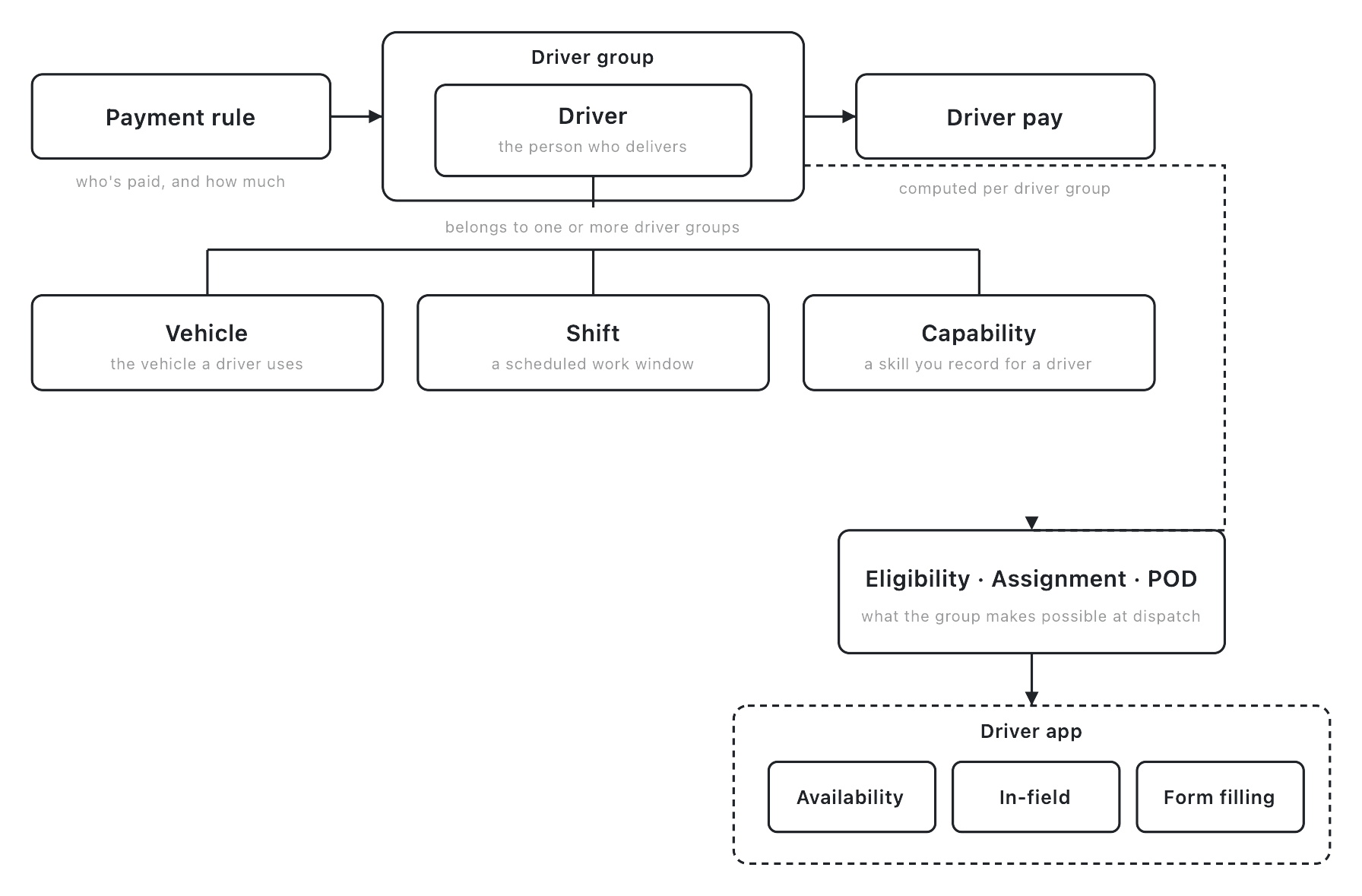
At the center of Fleet is the driver — the person who delivers for your own fleet. A driver doesn't work alone, though: they're a member of one or more driver groups, and a driver group is the unit almost everything else attaches to.
- Driver ↔ driver group. A driver can belong to more than one group, and a group can hold many drivers. Membership is the starting point for everything covered in the next section — a driver group is what turns a roster of people into something that can actually be dispatched to.
- Driver ↔ vehicle. Vehicles are their own object — type, dimensions, and constraints — and drivers are linked to the vehicles they use. A vehicle can also belong to a driver group directly, the same way a driver does, so route planning can consider vehicle capacity alongside who's driving.
- Driver ↔ shift. A shift is a scheduled window of work for a driver (or a vehicle) at a store or zone. Shifts are planned ahead of time; whether a driver is actually working right now is a separate, simpler signal covered in the next section.
- Driver ↔ capability. Training issues capabilities — a record that a driver has completed a course or is credentialed for a certain kind of work. A capability is a note you keep about a driver, not a gate that changes what they're assigned; treat Training as a place to record and track skills, not a filter that restricts eligibility.
- Payment rule → driver group → driver pay. Pay isn't set on an individual driver. A driver payment rule applies to one or more driver groups, and every driver in an eligible group is paid according to that rule. Driver pay reports roll up from the same driver-group scoping.
Put together, the driver group is the hub. Drivers, vehicles, shifts, and pay all reference a driver group rather than pointing directly at each other, which is why the next section is worth reading closely: understand what a driver group controls, and you understand most of what Fleet does.
The driver group is the unit of eligibility and assignment
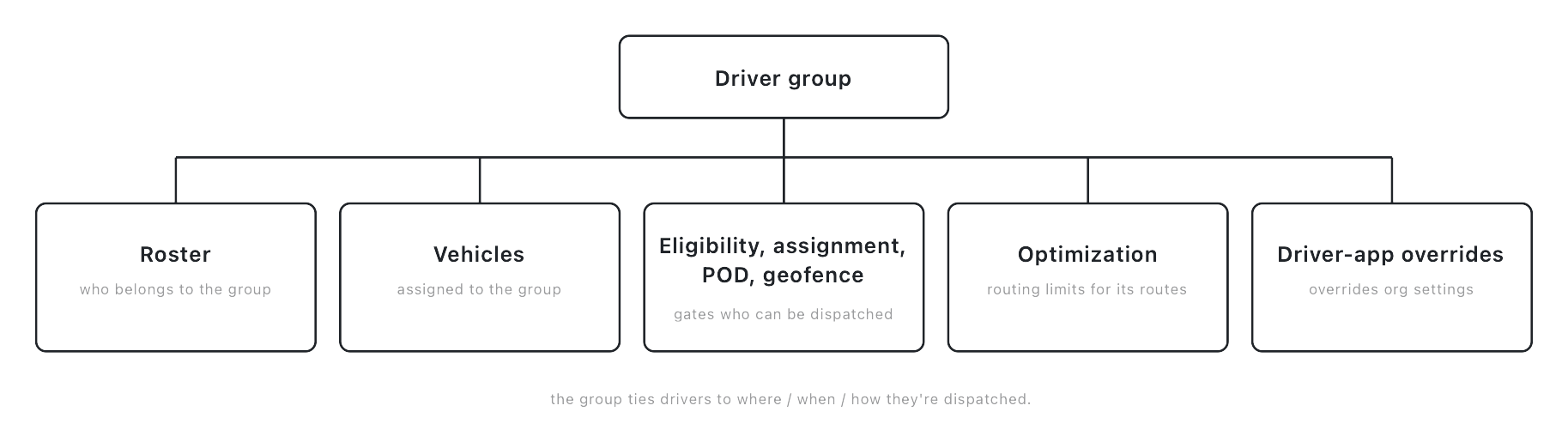
A driver group is more than a way to organize your roster — it's what ties a set of drivers to where, when, and how they can be dispatched. Every one of the following lives on the driver group, not on an individual driver:
- Geographic eligibility — separate pickup and dropoff coverage, scoped by zone, store location, country, state, city, or zip code. A driver group whose coverage doesn't include an order's pickup or dropoff simply isn't eligible for that order.
- Operating hours — per-weekday windows the group is eligible during.
- Package eligibility — what kinds of packages the group is set up to carry.
- "Publish deliveries to drivers" — a setting that, when turned on, makes eligible deliveries visible to the group's available drivers so any one of them can pick it up themselves, instead of a delivery being assigned to a specific driver. It comes with its own limits — how many deliveries can be offered this way, over what period, and within what radius — so it can be tuned rather than left wide open.
- Proof of delivery — which proof a driver in this group has to capture at pickup and dropoff, including a signature if you require one.
- Geofence-based arrival — an optional distance, in meters, from the pickup or dropoff location at which a delivery is automatically marked arrived, rather than requiring the driver to tap something.
- Optimization limits — the routing constraints this group's routes are built under: minimum and maximum stops per route, maximum driving time and distance, depot locations, and break rules.
- Driver-app overrides — a driver group can override a handful of the org-wide driver-app settings (covered in the next two sections) just for its own drivers, so one group can behave differently in the field than the rest of your fleet without you having to change anything at the organization level.
That's a lot of configuration living in one place, and it's not an accident: a driver group is your own fleet's version of the same object that makes an external carrier eligible to carry your work. Your own fleet is itself a provider, and a driver group is one of that provider's contracts — set up, priced, and made eligible the same way any contract is, and competing for orders as a quote the same way any contract's quote does. This article doesn't re-teach that eligibility-to-quote-to-dispatch model; How providers work covers it in full, and everything it says about a contract's eligibility and how a quote gets chosen applies here too. What's specific to Fleet is everything above: the geographic, scheduling, and assignment behavior packed into a driver group, plus the two things no external contract has — a driver-app override and a direct link to the people carrying the work.
How a driver gets the work
Zoom out to a single delivery, and the path from "dispatch decided your own fleet should carry this" to "a specific driver has it" runs through the driver group in one of three ways:
- Automatic assignment. For a driver group set up this way, the delivery is bound directly to the group's driver — no offer, no dispatcher step. This works best for a group that effectively has one driver, since there's no ambiguity about who the work goes to.
- Publish to drivers. With "Publish deliveries to drivers" turned on for the group, an eligible delivery is offered to the group's available drivers instead of assigned to one directly, and whichever driver accepts it first gets it. It's a self-serve pickup model rather than a push.
- Manual dispatcher assignment. Nobody's set up for automatic binding or self-accept, or a dispatcher wants to make the call themselves — the delivery waits for a person to assign it to a specific driver.
All three paths only draw from drivers who are actually eligible in the moment, and eligibility here comes down to two separate signals that are easy to blur together but shouldn't be:
- Availability is a simple on/off switch — whether a driver is currently working, or on the clock, right now. It's usually set by the driver themselves, turning it on and off in the driver app as they start and stop working; the portal lets you see and, if needed, override it.
- A shift is a planned window of work you or the driver scheduled ahead of time — a specific date, start time, and end time. A shift is what you planned; availability is what's actually happening right now. A driver can be scheduled for a shift and still show as unavailable if they haven't started it, and the reverse is possible too.
Availability and shifts influence which drivers are candidates for automatic assignment or publish-to-drivers; a manual dispatcher assignment can reach further, since a person is making the judgment call directly.
Which quote wins the order in the first place — whether it's your own fleet or an outside provider — is a decision this article deliberately doesn't own. That's the dispatch strategy's job, and it's covered in full in dispatch strategies. What's described above starts one step later: once your own fleet's driver group has won the delivery, this is how it lands on an actual driver.
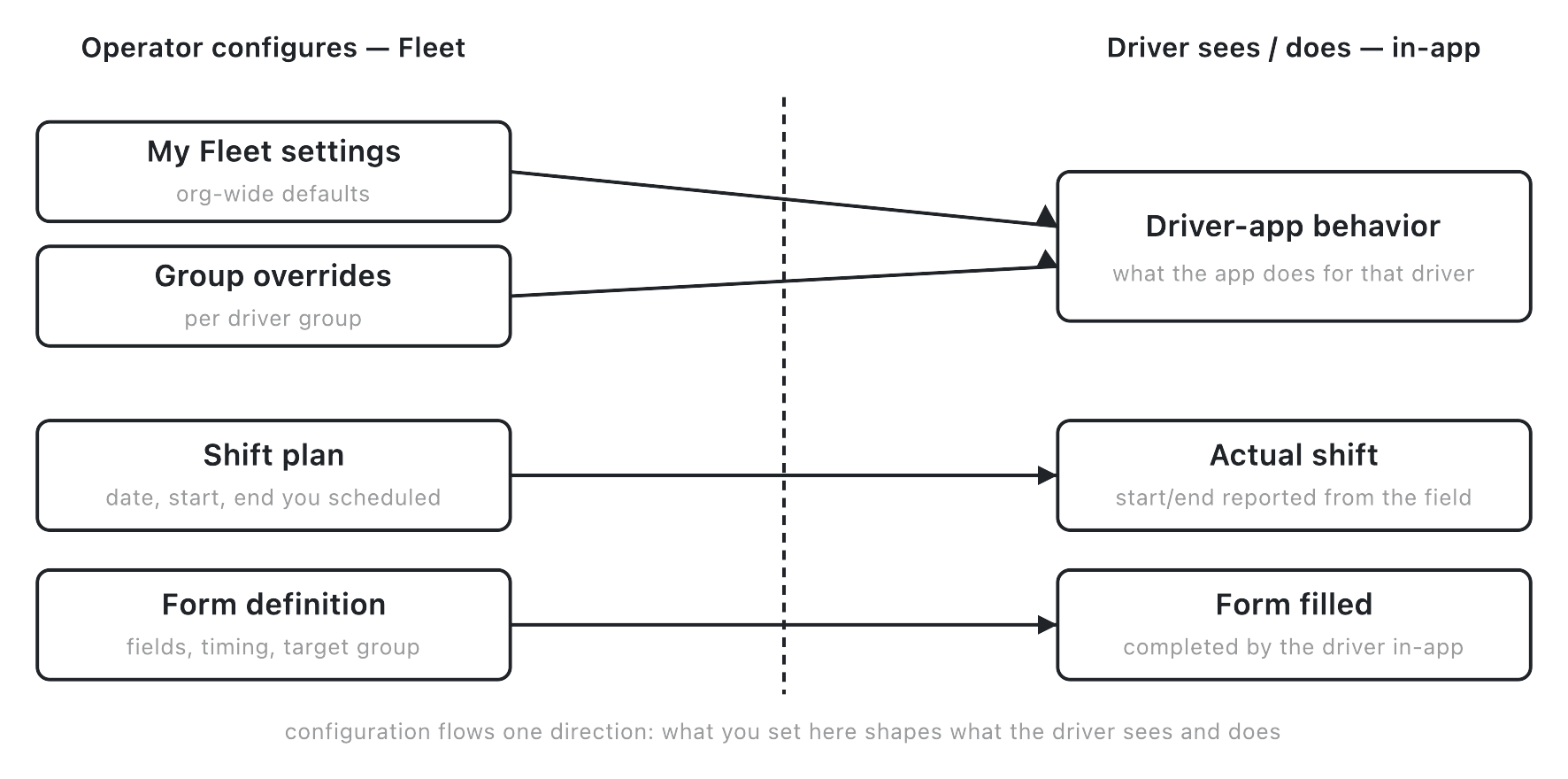
Config here shapes the driver app
A large share of what you configure in Fleet exists for one reason: to shape what a driver sees and does on their phone. That happens at two levels.
My Fleet settings are organization-wide defaults — around thirty toggles covering how deliveries are assigned, how pickup and delivery sequencing works, what a driver's route card shows, and how navigation and communication behave in the app. Change a setting here, and every driver across your fleet is affected, unless a driver group has overridden it.
Per-group overrides, covered in the previous section, let a driver group replace a handful of those same org-wide settings just for its own drivers. A group that doesn't set an override simply inherits the org value; a group with an override behaves differently in the field without touching anything at the organization level.
The same config-to-field relationship shows up in two other places:
- Shifts. You plan a shift — a date, a start time, an end time — and the driver's actual start and end times come back from the field once they've worked it. The plan and the outcome are two different things, compared to each other in reporting rather than assumed to match.
- Forms. You build a form in the Forms area — its fields, when it should appear (before a route starts, after it ends, or once pickups are done), and which driver group it applies to — and the driver fills it out in the app during their route.
What you won't find in this article, or elsewhere in Fleet today, is a how-to for what a driver actually does with any of this once it reaches their phone — accepting or skipping a delivery, following a route, filling in a form, going on or off the clock. That in-field experience is a separate part of the product, documented on its own; this article and the rest of Fleet stop at the boundary of what you configure, not what the driver does with it.
What affects this
None of the objects in this article sit in isolation. A handful of things set elsewhere shape how a driver group behaves at dispatch, how its routes get built, and where it's even allowed to operate.
| Input | Where it's set | Effect on Fleet |
|---|---|---|
| Dispatch strategy | Automate ▸ Strategies — see dispatch strategies | Decides whether your own fleet's quote wins an order in the first place, before a driver group's assignment settings ever come into play |
| Optimization strategy | Automate ▸ Strategies — see optimization strategies | Builds routes for your own fleet using each driver group's optimization limits — stop counts, driving time and distance, depots, and breaks |
| Providers and contracts | Providers — see how providers work | Your own fleet is itself a provider, and a driver group is one of that provider's contracts; the shared eligibility, pricing, and quote model described there applies to every driver group |
| Zones and locations | Providers and contracts — see how providers work | Supply the geographic values — zones, store locations, countries, states, cities, zip codes — that a driver group's pickup and dropoff eligibility is scoped against |
| Delivery windows | Set on the order | A timing constraint on when the order has to be delivered, separate from a driver group's own configured operating hours |
Delivery windows don't have a concepts page of their own yet in this collection; they're described here in terms of the effect they have on a driver group, not linked, so this map stays accurate as that area gets built out.
The throughline across all of it: Nash decides which quote wins and builds the route, but the provider or your own fleet performs the delivery. Fleet is where you shape how your own drivers do that — not a replacement for the dispatch and optimization decisions that happen around it.