Download Your Invoice Transactions
Last updated: April 9, 2026
Efficiently access and analyze your billing transactions, including payments and refunds, with this guide.
Viewing and Downloading Invoice Details
Locate Invoices:
Click Settings at the bottom left of your dashboard.
Select Billing > Manage.
In the Billing Management section, find a list of all invoices, with the most recent at the top.
View a Specific Invoice:
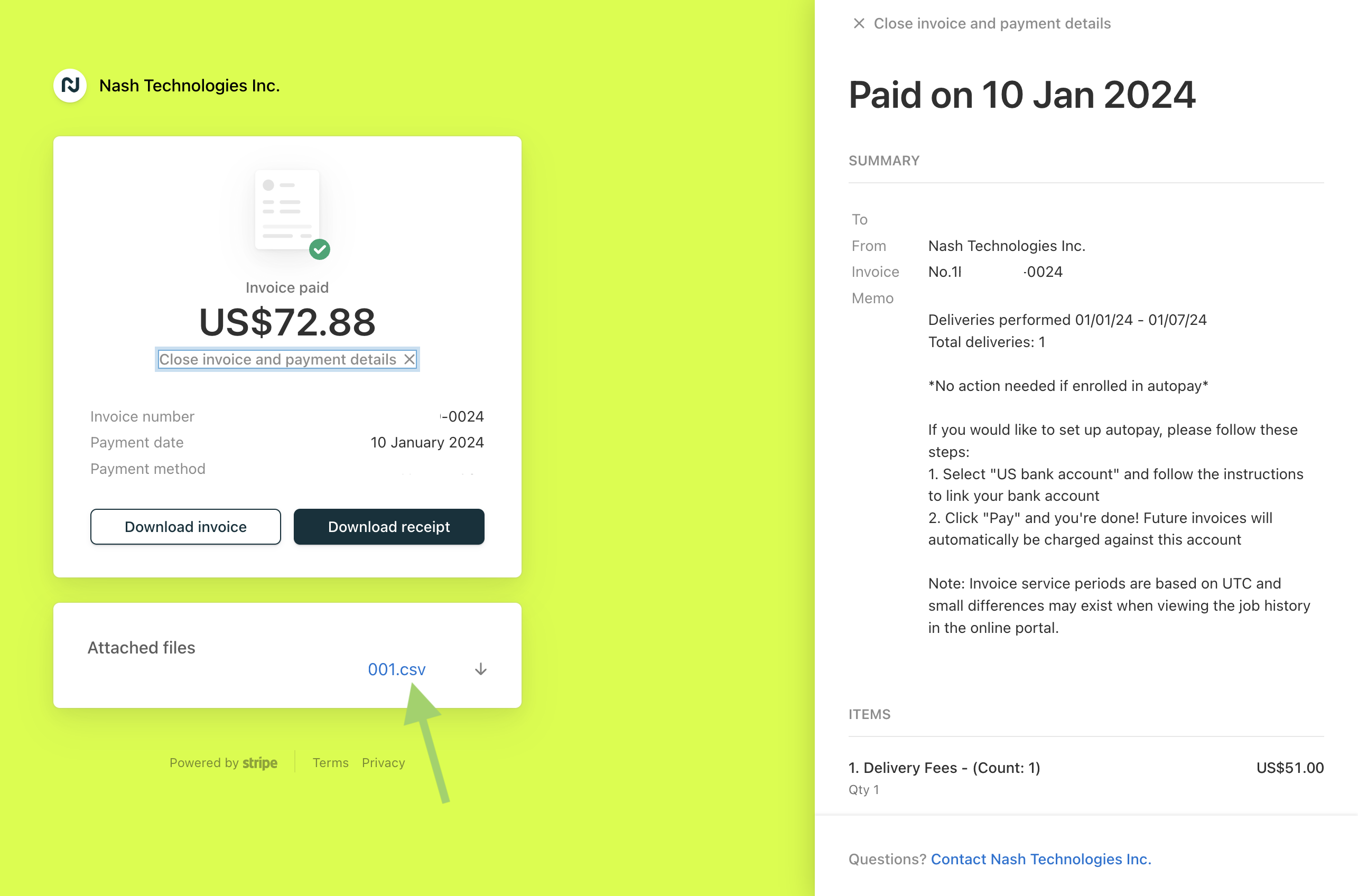
Click View receipt next to the invoice you want to examine.
A new tab will open, where you can:
Download the itemized invoice.
View the receipt.
Open a detailed CSV file of transactions.
Access Itemized Transactions:
Locate the Attached Files section in the detailed invoice view.
Click on the attached CSV file name to download it.
Access Historical Invoices:
If you need invoices older than those shown in the main list, scroll down to the Historical Invoice section.
Download a report to access your older billing records.
Alternatively, you can:
Email the accounting team at accounting@usenash.com to request past invoices.
Check your email inbox for invoices that were previously sent to you.
Understanding the CSV File
The CSV file contains comprehensive transaction data, including:
Transaction Dates: Dates of payments and refunds.
Payment Amounts: Details of charges and refunds.
Transaction Types: Categories such as payments or refunds.
Additional Billing Details: Any other relevant information.
Use spreadsheet software like Microsoft Excel or Google Sheets to open the file for further analysis.
By downloading and analyzing these details, you gain full visibility into your Nash billing history, allowing for precise financial tracking and reporting.