How workflows work
Last updated: October 12, 2026
Note
This is a beta feature. Reach out to Nash if you'd like early access.
A workflow is one idea repeated in a hundred shapes: watch for something to happen, then act on the job for you. The overview introduces that idea and names the three pieces every workflow is built from; this article goes underneath it — what decides which fields you can filter on, why an action appears in one workflow and not another, where the "events" in "workflows and events" come from, and what happens between a trigger firing and its actions running.
One thing to fix in place first: Nash dispatches the job, and a provider or your own fleet carries it out — so when a workflow cancels or reassigns a delivery, it acts on the dispatch Nash made, not on the physical drive.
How it works
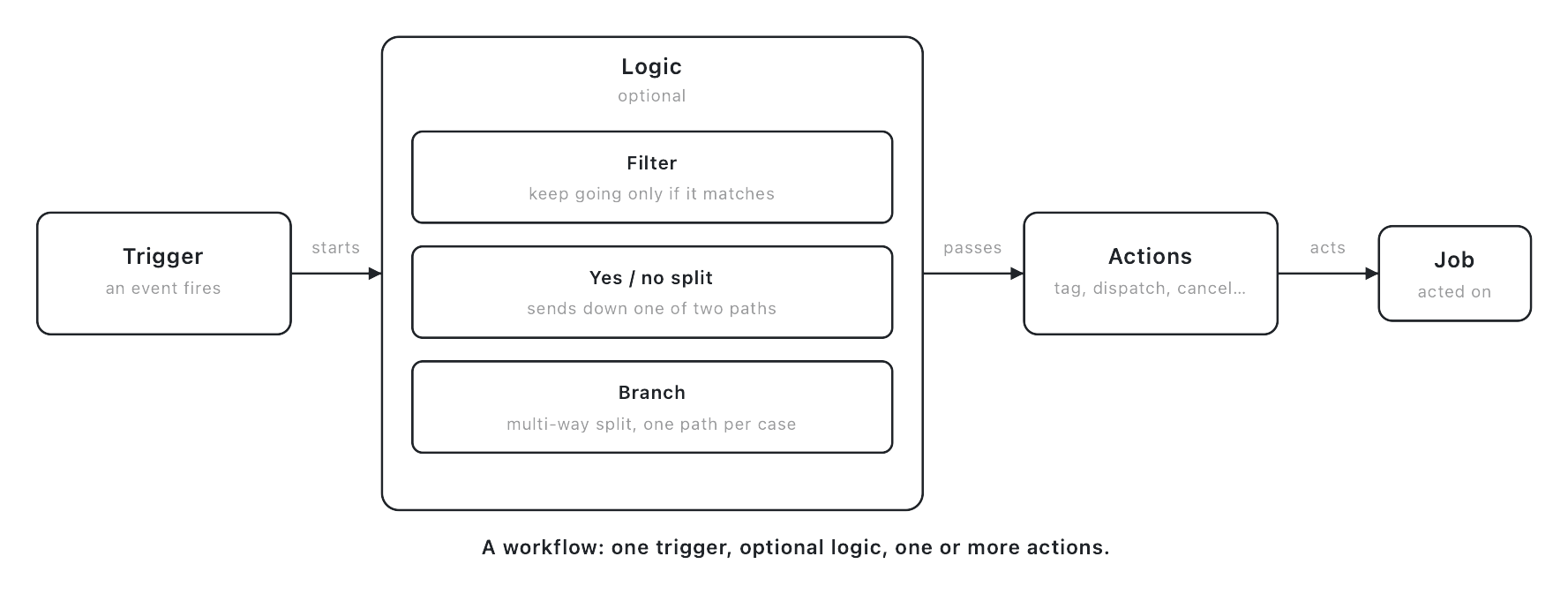
Every workflow is a chain you build visually on a canvas under Orchestrate ▸ Workflows — no code, just steps you connect left to right. The chain always has the same three-part shape:
- A trigger starts it. There is exactly one trigger per workflow — the event the workflow waits for, such as an order being created, a delivery running late, or a proof-of-delivery photo uploaded.
- Logic in the middle decides whether to keep going and which way. You have three variants: a Basic Filter ("continue only if the order is over $200"), a Yes/No split that sends the workflow down one of two labeled paths, and a Branch — the multi-way split that fans into several paths at once, one per case you define. Logic is optional; a workflow can go straight from trigger to action.
- Actions are what Nash does once the logic passes: tag the order, set a dispatch strategy, send a message, flag it, cancel it, and more. You can chain logic and actions freely — filter, then branch, then a different action per branch.
The most important thing about the model is that the trigger doesn't just start the workflow — it sets the context the whole workflow runs in. Every trigger is tied to one kind of thing: an order, a delivery, a task, or a job. That context isn't cosmetic; it decides two concrete things downstream:
- Which fields your logic can test. A delivery-context trigger gives your conditions delivery attributes — status, timing, location; an order-context trigger gives order attributes instead. You can only filter on what the context carries.
- Which actions are available. Set dispatch strategy and Cancel order make sense only when the workflow is holding an order, so they appear on order-context workflows; Flag task or delivery and Cancel delivery appear when the context is a delivery. Pick a trigger and the action list changes to match.
So two structurally identical workflows can offer different building blocks simply because they started from triggers with different contexts. The full breakdown of which fields and operators each context exposes lives in workflow triggers, conditions, and actions.
What can trigger a workflow
A workflow's trigger is an event — something Nash detects happening in your operation. The catalog of events isn't a separate list to learn: it's the same catalog that fires customer notifications — a delivery crossing a status, an ETA slipping past its promised time, a proof-of-delivery photo landing, an order needing attention. When that detection trips, a notification can announce it to your customer and a workflow can react to it, off the same signal — the direct seam to how tracking and notifications work. The events are enumerated once, with the fields each exposes, in the notification events and variables reference; read that list as your menu of workflow triggers too.
Two triggers stand apart from that shared catalog and are worth naming:
- Order is being created / has been created. Raw order events, not detections — they fire directly off an order entering the system. The "is being created" variant gets its own section below.
- Custom Event. A workflow can start when another workflow emits a named custom event — the seam that lets workflows hand off to each other, covered below.
Note
A few triggers carry no entity at all — those tied to activity or optimization events rather than a specific order or delivery. With nothing to test, the builder hides the logic steps: they're action-only. If you pick one and can't add a Filter, that's expected, not a bug — there's no order or delivery in scope for a condition to read.
What a workflow can do
Once a trigger has fired and your logic has passed, the workflow runs its actions. The set is broad; this is the shape of it, and the workflow actions reference is the full catalog with every label and where each is available. An action can:
- Tag or annotate the job — add tags, or add a custom event other workflows listen for.
- Steer dispatch and routing — set the order's dispatch strategy or optimization strategy, so the workflow decides how Nash dispatches this job.
- Shape the order — add handling requirements, modify the price or tip, or remove the order from its route.
- Send a message — an email or SMS to a customer, or a message to your own team in Slack or Microsoft Teams.
- Flag or cancel — flag a delivery so it surfaces on your Deliveries page, or cancel the order or delivery (acting on the dispatch, not a driver mid-drive).
- Reach an outside system — call one with an HTTP request, the richest action of the set (its own section below).
- Bring in AI — summarize an order into a value later steps can use, place an outbound AI call, or hand the step to a configured agent.
A handful of actions are available depending on your setup — Send a Teams message, Run browser automation, Run Custom Agent, and the route-flag actions among them. If one isn't in your action list, it's gated for your organization rather than missing; reach out to Nash. And even an action you have can be absent when the trigger's context doesn't support it.
Variables carry live data into an action
Most action fields accept {{ variable }} merge fields — order, delivery,
job, and task data, plus the output of earlier steps — resolved at run time, so a
message body can read {{ order.id }} without hard-coding anything. A value
that's present but empty renders as a blank string, never the word "None." The
full merge-field catalog is the
workflow variables reference.
Important
Reference only the fields your trigger's context actually carries. Pointing an action at a delivery field on an order-only trigger, at an unknown field, or at a step's output before that step has run makes the action fail at run time — it doesn't quietly blank out. A failed step with a variable error is almost always this. Stick to the fields the picker offers for your context, and guard optional data with a condition first.
Custom events: the "events" half
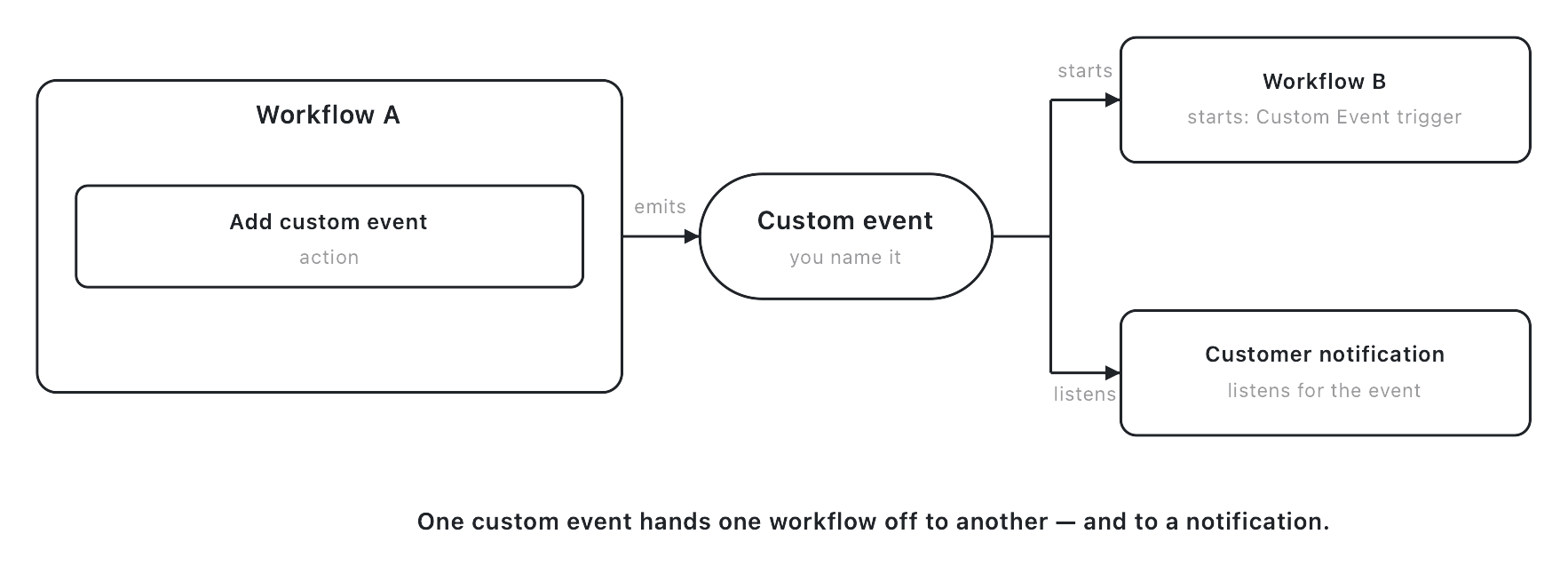
This is the events half of "workflows and events." A custom event is a signal one workflow emits and another reacts to — the way two workflows talk without being wired together directly. It works in three moves:
- Emit. One of a workflow's actions is Add custom event; reaching it emits a named event into Nash.
- Listen. Another workflow uses the Custom Event trigger and starts up whenever that named event fires.
- Check. A condition can also test whether a named custom event Has Occurred or Has Not Occurred against this order, job, task, or delivery — read from Nash's durable event history — so a workflow can branch on the past ("only continue if we never sent the courtesy SMS"), not only start on an event.
Loop protection stops a workflow from re-firing itself. Before workflows can emit and listen, the custom event has to exist: it's defined under Orchestrate ▸ Custom Events, which needs organization-management permission — so an admin typically registers the vocabulary your workflows then use. See use custom events.
The Send HTTP request action
Send HTTP request reaches outside Nash — a single outbound HTTPS request to a pre-approved connection: a destination, credential, and allowed request shape that an organization admin sets up once under Settings (see set up an HTTP connection). You pick a connection and fill in the rest — no arbitrary URLs, and auth headers come from the connection, not the step. Nash only allows secure HTTPS requests to public destinations.
| Field | What it does | Default |
|---|---|---|
| Connection | Chooses the pre-approved destination and credential | none — required |
| Method | GET / POST / PUT / PATCH / DELETE, limited to what the connection allows | POST |
| Timeout (seconds) | How long to wait, capped at 30 | the connection's default |
| Request path | Path under the connection's allowed prefix; accepts variables | / |
| Query parameters / Request headers | JSON objects, values templatable | empty |
| JSON body | Templatable JSON payload; hidden on GET | none |
| Send idempotency key | Adds a stable key on mutating methods so a retry can't double-apply | on |
| Response JSON pointer | Points to the one value to keep; if empty, the status code is stored | none |
| Stored result type | Text / Integer / Number / Boolean | Text |
| If the request fails | Fail this workflow or Continue with failure metadata | Fail this workflow |
Alongside the stored value, the step records the status code, whether it succeeded, and a failure reason — all available to later steps to branch on.
Tip
The request runs once — Nash doesn't retry it or guarantee exactly-once delivery. Keep the idempotency key on and make the receiving endpoint idempotent. Rather than assume success, set If the request fails to Continue with failure metadata and add a Yes/No step reading the failure reason, so a timeout or non-2xx routes down a handled path. Full walkthrough: send an HTTP request from a workflow.
Building, saving, and turning it on
Naming and status. You create a workflow with a name (editable later), then build it; it's off until you enable it. The list groups workflows by status — All / Active / Inactive / Archived — and only an Active workflow ever responds to its trigger.
Saving runs a publish check. Each save validates the workflow and, if anything's off, shows "Review N issue(s) before publishing." Jump straight to the offending step or field to Fix issues first, or choose Publish anyway — but that applies the open issues to the live workflow, so fix them unless you have reason not to.
Only the latest saved version fires. Every save replaces what's live; no old version runs alongside it, and editing an Active workflow makes the new version the one that runs from then on. You don't manage versions by hand.
| Status | What it means | Typical next step |
|---|---|---|
| Draft / new | Built but never activated | Add a trigger and actions, save, then enable |
| Active | Live — the latest saved version responds to its trigger | Monitor runs; disable to pause |
| Inactive | Saved but dormant — nothing fires | Enable to make it live again |
| Archived | Retired from the active list (reversible) | Restore, or leave archived |
Important
If you edit a workflow but it's Inactive, nothing runs — and there's no error to tell you so; the run list just stays empty. Before concluding a workflow is broken, confirm it's Active. A surprising amount of "my workflow didn't fire" is simply one that was never enabled.
You can also Duplicate a workflow (a deep copy), Export it to JSON, or Import one from pasted JSON — import replaces the entire canvas rather than merging, so duplicate first to keep the original. There's no template gallery: the "recipes" in this collection are patterns you build yourself, not items you pick from a library.
Testing before you trust it
There's a deliberate safety ladder before you let a workflow loose on production.
- Test (dry run). Runs against a real order or job by ID and walks the logic without firing any real actions — the safest way to confirm filters and branches behave.
- Test (live). Optionally sends a real,
[Test]-prefixed message to validate an integration end to end. This one really sends. - Run. A real production execution against one entity, warned clearly it's not a simulation — it fires every action it reaches.
- Bulk run. From the Orders table, run one active workflow across several selected orders. Each starts a separate production run with no undo — so test first, then bulk-run a small set before a large one.
The click-by-click is in run a workflow manually.
Note
The bulk-run screen's empty state still points you to "Settings > Workflows." That's stale copy — the workflows list lives under Orchestrate ▸ Workflows. Activate it there and it appears in the bulk-run picker.
How a run executes
When an event happens, Nash matches it against every Active workflow whose trigger fits, queues a run, and a moment later walks the steps in order. A Yes/No filter follows its success path when the conditions match and its negative path otherwise; a Branch fans out to the matching case.
A filter that can't be evaluated fails closed — treated as "did not match," it takes the negative path rather than crashing the run. That's safe by design, but a broken condition can quietly route an order down the wrong branch, so watch for a "Filter Errored" step when a workflow behaves unexpectedly.
One exception to the async pattern: the Order is being created trigger runs inline, before the order exists — so its actions can shape the order (set a strategy, add tags or requirements, modify the price or tip, update the order's text or metadata) but cannot send a message, call an external system, or place an AI call. For anything outbound, trigger on Order has been created instead.
| Run status | What it means | Typical next step |
|---|---|---|
| Pending / Queued | Matched an event; waiting for a worker | Wait — usually seconds |
| Running | Walking the steps now | Wait for it to finish |
| Success | The run finished — including a run a condition stopped before any action ran | Review the per-step results |
| Paused | A step paused mid-run and will resume | Usually resolves on its own |
| Failed | A step errored (and was set to fail the run) | Open the run, read the failed step, fix, re-run |
| Cancelled | The run was stopped before it finished | Check why it was stopped; re-run if needed |
Every run is recorded in Execution History, with the per-step outcome at a glance — Filter Passed, Filter Rejected, Filter Errored, or an action's error. Each step also carries its own status, and the one misread most often is Filtered: a filtered step is not a failure — it's the workflow correctly deciding this job didn't meet the conditions, so nothing downstream should happen, and the run itself still ends as Success. Reading that history, and telling a healthy filter from a genuine problem, is covered in monitor workflow runs.
What affects this
A workflow rarely acts alone — most of what it does depends on objects defined elsewhere in the portal, each with its own home. Below is each one's role here.
| Object | Where it's set | What it does here |
|---|---|---|
| Dispatch strategies | Orchestrate ▸ Dispatch Strategies — see how dispatch strategies work | The Set dispatch strategy action assigns one to an order, deciding how Nash later picks a provider. To give every order a strategy by rule, with a default, use dispatch automations instead. |
| Optimization strategies | Orchestrate ▸ Optimization Strategies — see how optimization strategies work | The Set optimization strategy action assigns one, shaping how orders group and sequence into routes. |
| Custom events | Orchestrate ▸ Custom Events — see use custom events | The named events a workflow can emit, listen for, or test with Has Occurred / Has Not Occurred. |
| Notifications & tracking | The shared event catalog — see how tracking and notifications work | Supplies the detected events that most workflow triggers fire on. |
| HTTP connections | Settings — see set up an HTTP connection | The pre-approved destinations the Send HTTP request action is allowed to reach; an org admin defines them. |
| Nash Agent | Available depending on your setup — see what Nash Agent is | Powers the Run Custom Agent action, handing a step to a configured agent. |
| Orders | Operate ▸ Orders — see how orders work | The table you bulk-run a workflow from, and the entity most workflows act on. |
Because these resolve at run time, a workflow that looks right can behave unexpectedly when the object behind it changes — a strategy edited, a custom event renamed, a connection an admin turned off. When one surprises you, check both the run history and the objects above. You can also see which workflows touched a given delivery from its detail view — see workflows used on a delivery.
Note
Some of these areas are available depending on your setup. If you don't see one, it may not be turned on for your organization — reach out to Nash.
For the click-by-click of assembling a workflow on the canvas, see build a workflow in the portal.