Update Delivery Time for an Active Delivery
Last updated: May 7, 2026
In Nash, you can update the delivery time of an active delivery through the Delivery Details page. Follow these steps to make adjustments:
Update Delivery Time
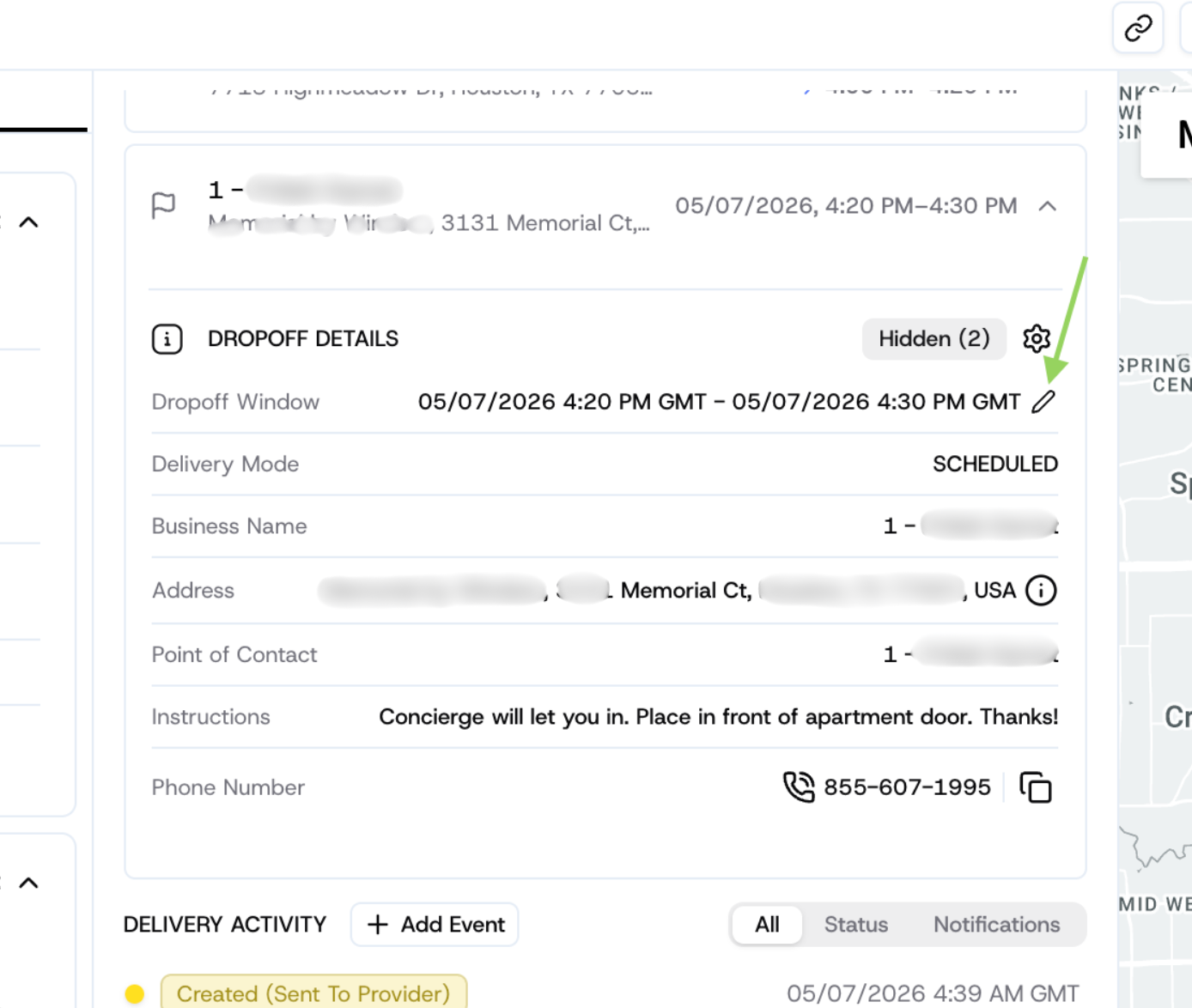
Open the Delivery Details page for the job you want to update.
Click the pencil icon to change the time.
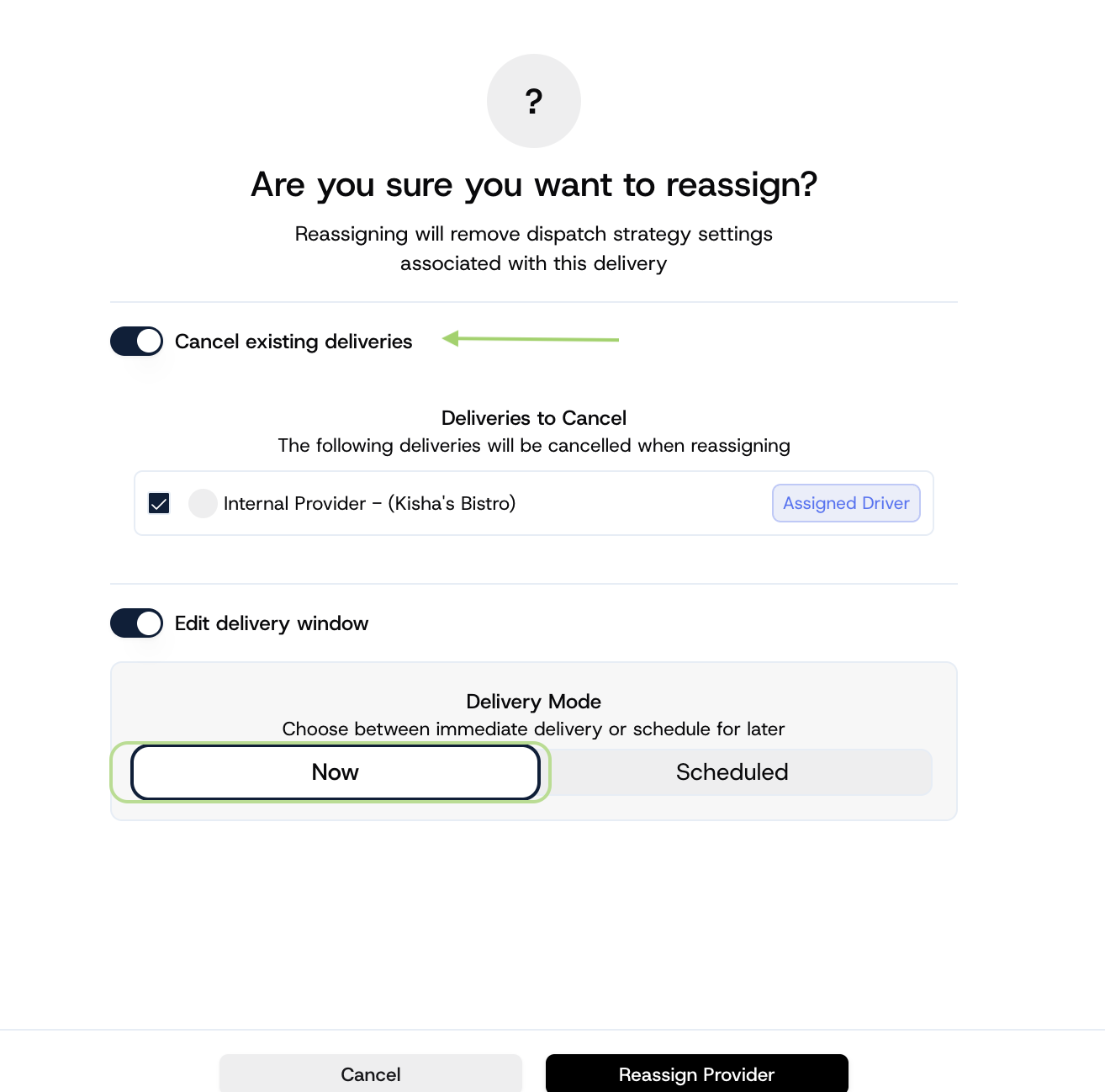
In the editing window, cancel the current delivery to avoid duplicate drivers or charges.
Toggle on the Edit delivery window option automatically gets toog
Choose Delivery Timing:
For Now Deliveries, the pickup window starts 5 minutes from the current time, and the dropoff window is 25 minutes from the current time.
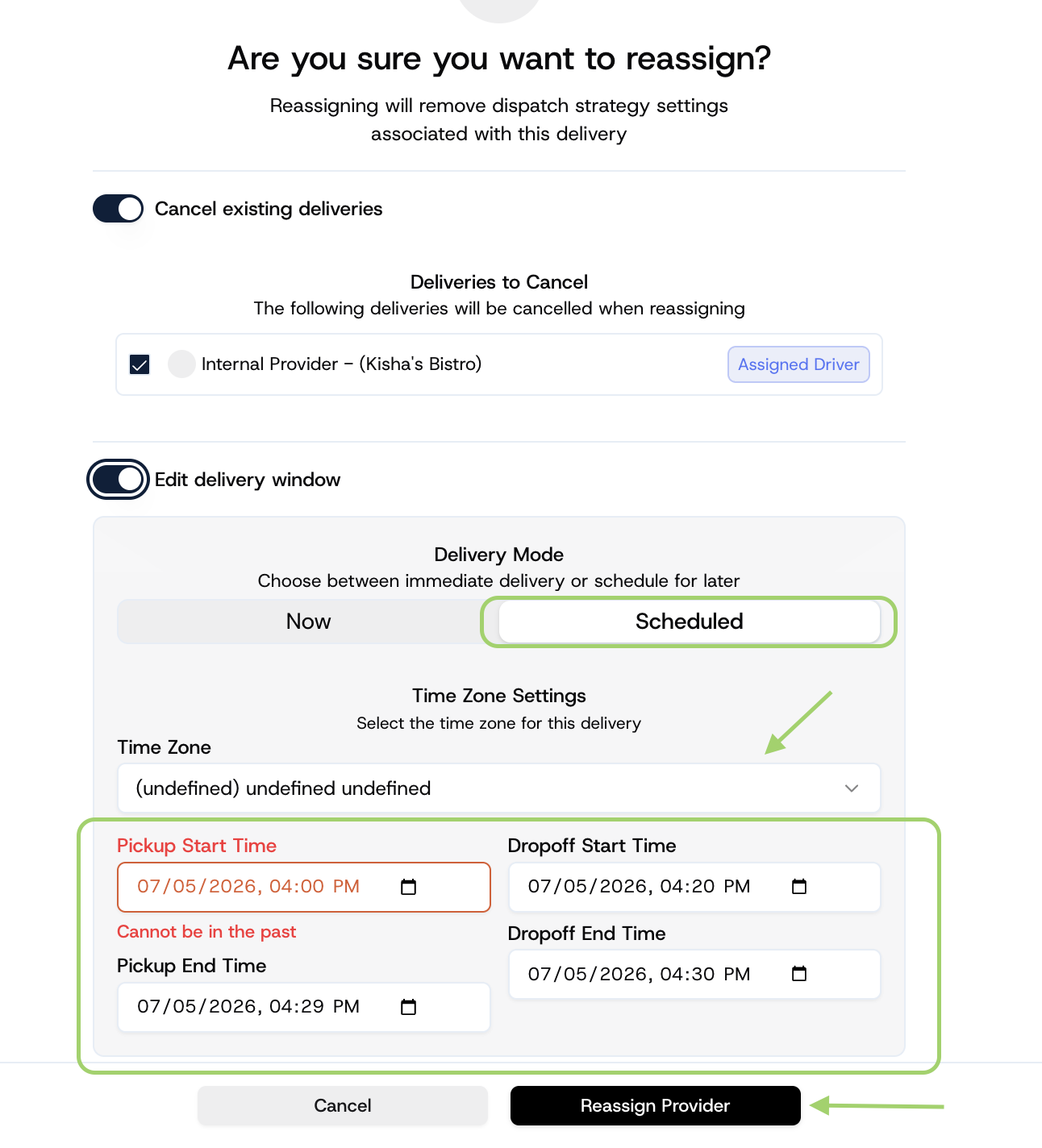
For Scheduled Deliveries, select the Timezone settings & manually define a new pickup and dropoff window.
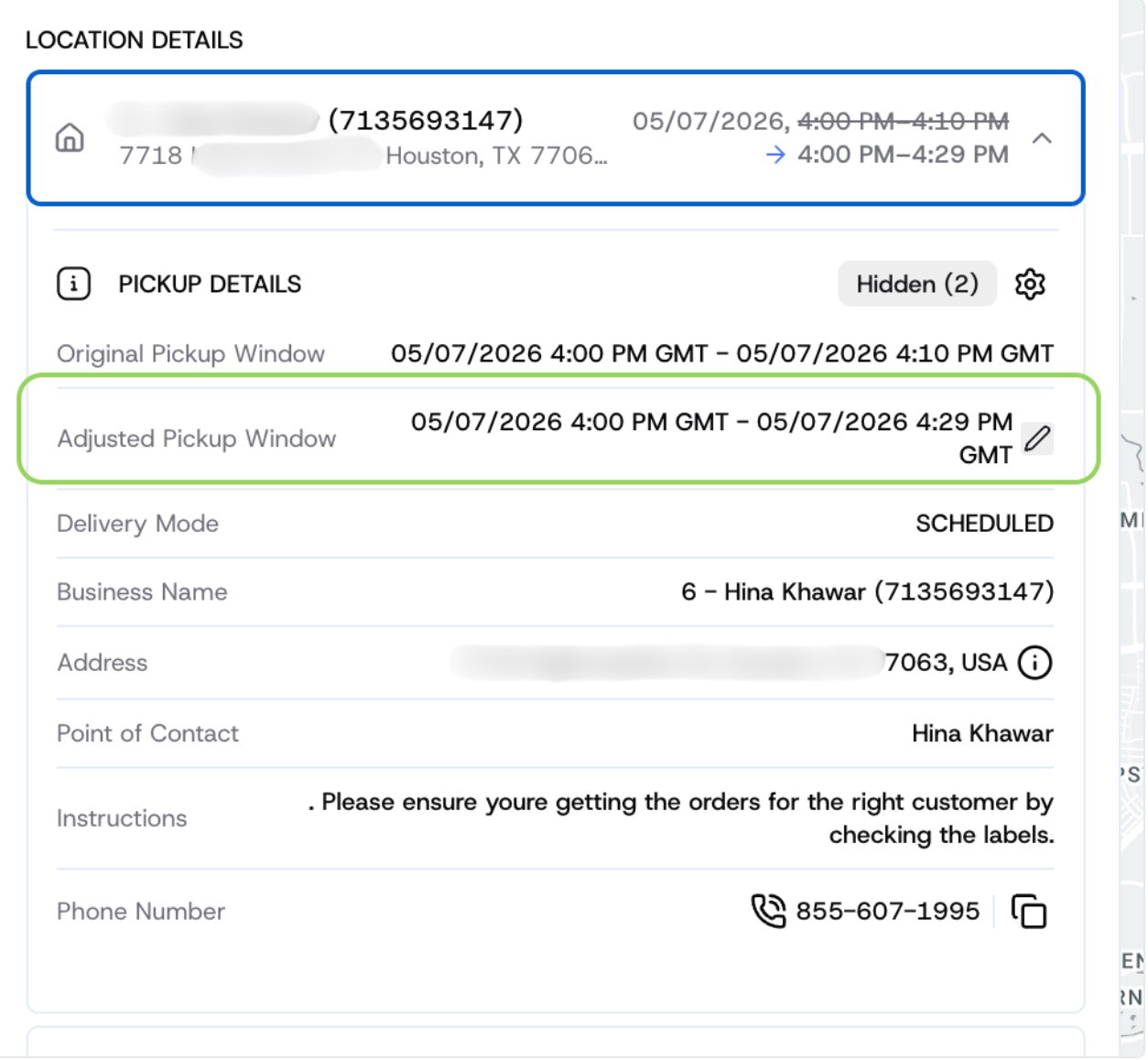
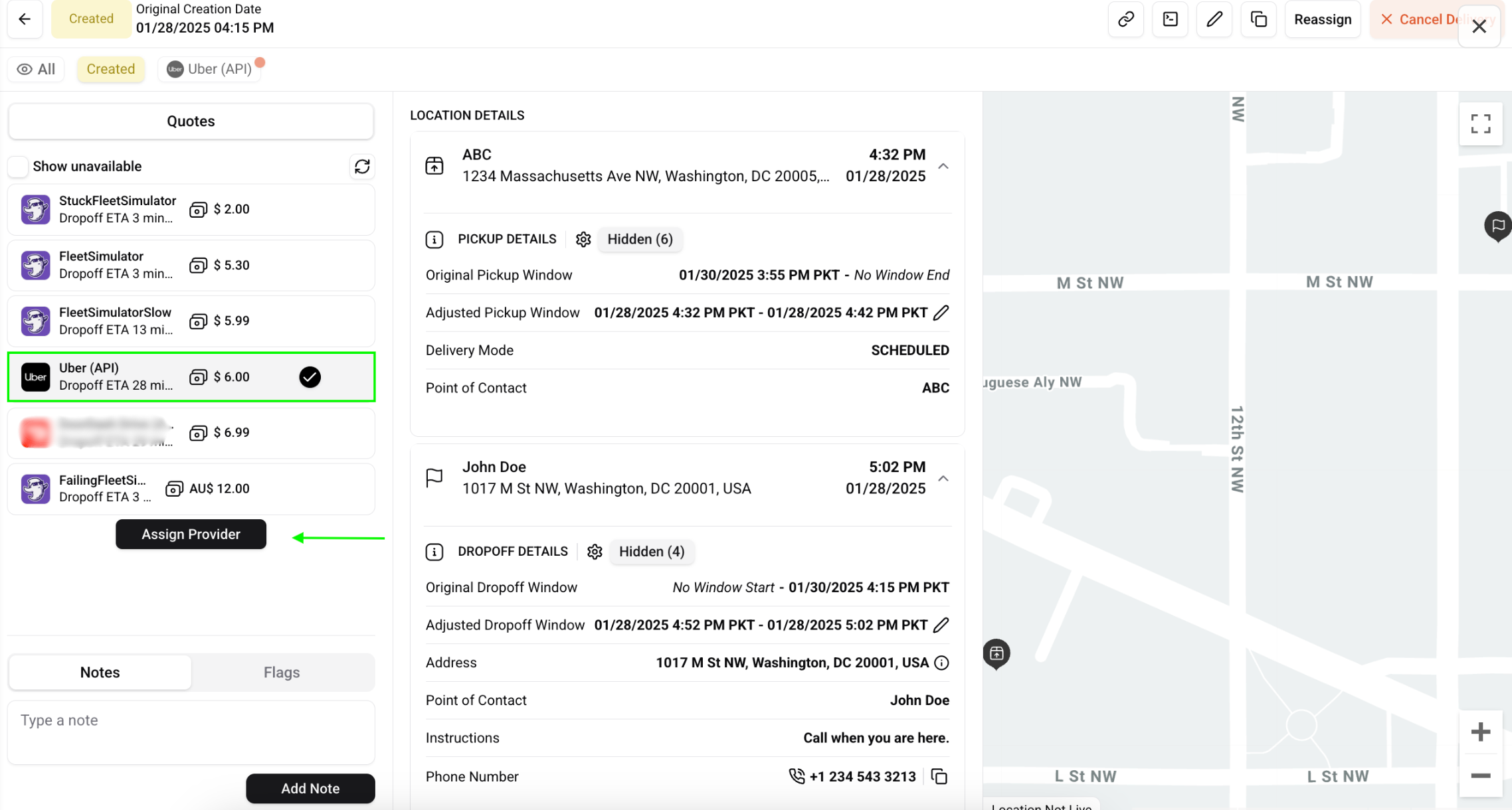
Click Reassign to apply the new delivery timing. The Pickup & Dropoff details on the delivery details page will display the original and adjusted time windows.
Review updated quotes and Assign a Provider for your delivery. Reassigning removes the original dispatch strategy settings, so you must manually select a provider.
Important Considerations
Cancel Before Reassigning: Ensure you cancel the existing delivery to avoid duplicate charges or drivers for the pickup.
Impact on Pricing & Availability:
Changing pickup or dropoff times may affect pricing and provider availability.
Updates after dispatch will invalidate existing quotes and job IDs.
Manual Reassignment: Dispatch strategy settings will no longer apply; you must manually reassign the delivery.