View Driver Notes
Last updated: January 30, 2025
Nash users can access driver notes to understand order delivery outcomes, including reasons for non-delivery and delays. These notes provide valuable insights into delivery challenges and help improve team communication.
Accessing Driver Notes
To view driver notes:
Log in to your Nash account.
Select Deliveries from the left sidebar.
Select on the specific delivery you wish to review & See Details from the drawer.
On Delivery Details page. Scroll down to the Driver Details section, toggle the Notes from Driver option to ON, and click Save as Default to apply your changes.
You will now be able to access driver notes.
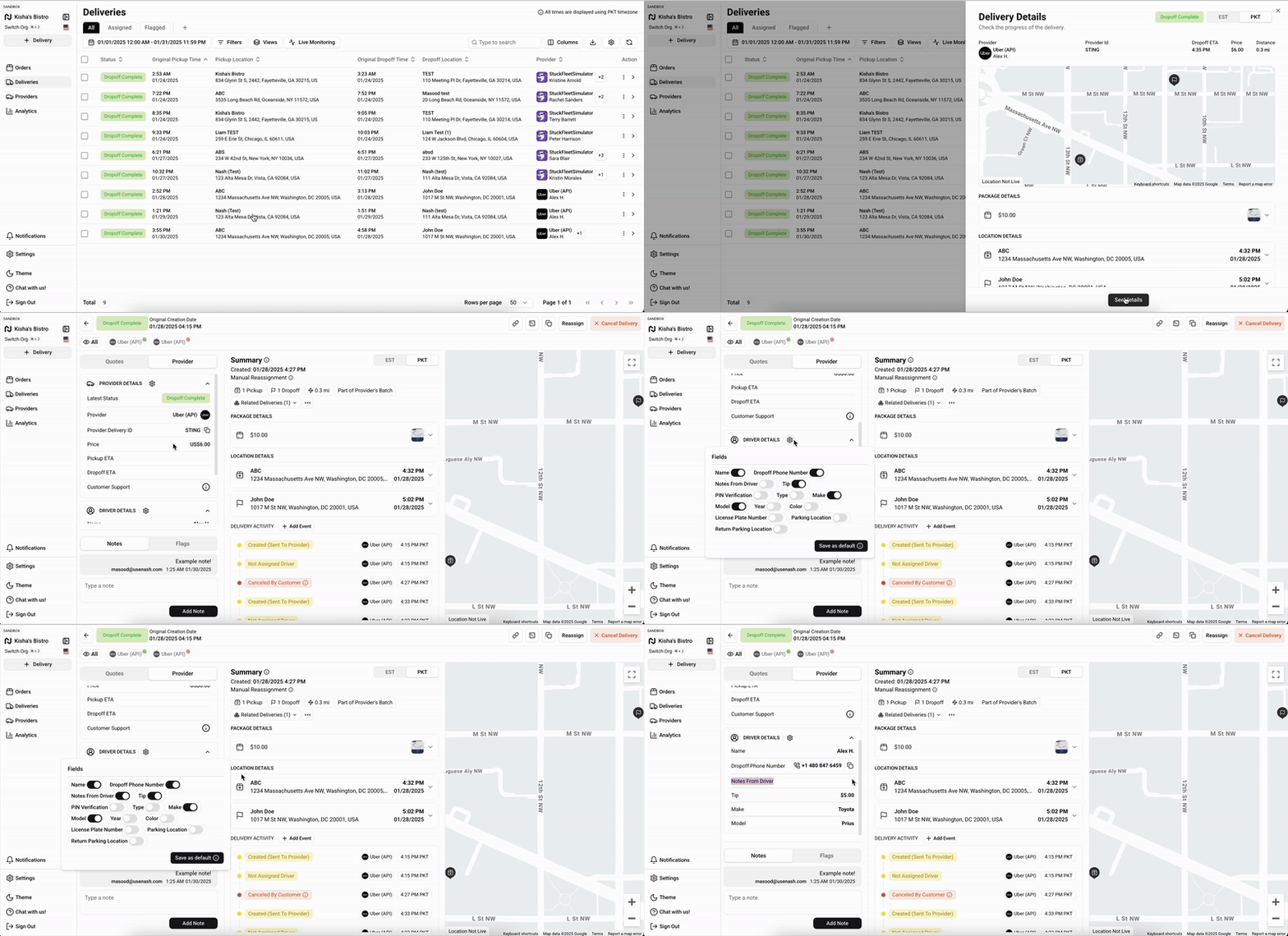
While the notes may have originated with the driver, the notes section is internal only, and is not viable to drivers or customers.
Information Found in Driver Notes
Driver notes typically include:
Reasons for non-delivery (e.g., customer not available, incorrect address)
Explanations for late deliveries (traffic delays, scheduling issues)
Problems encountered during delivery
Special customer requests or interactions
Adding Internal Notes
To add your own internal notes:
On the Delivery Details page, select Add a note in the bottom left.
Enter your comment in the text box.
Select Save to record the note.
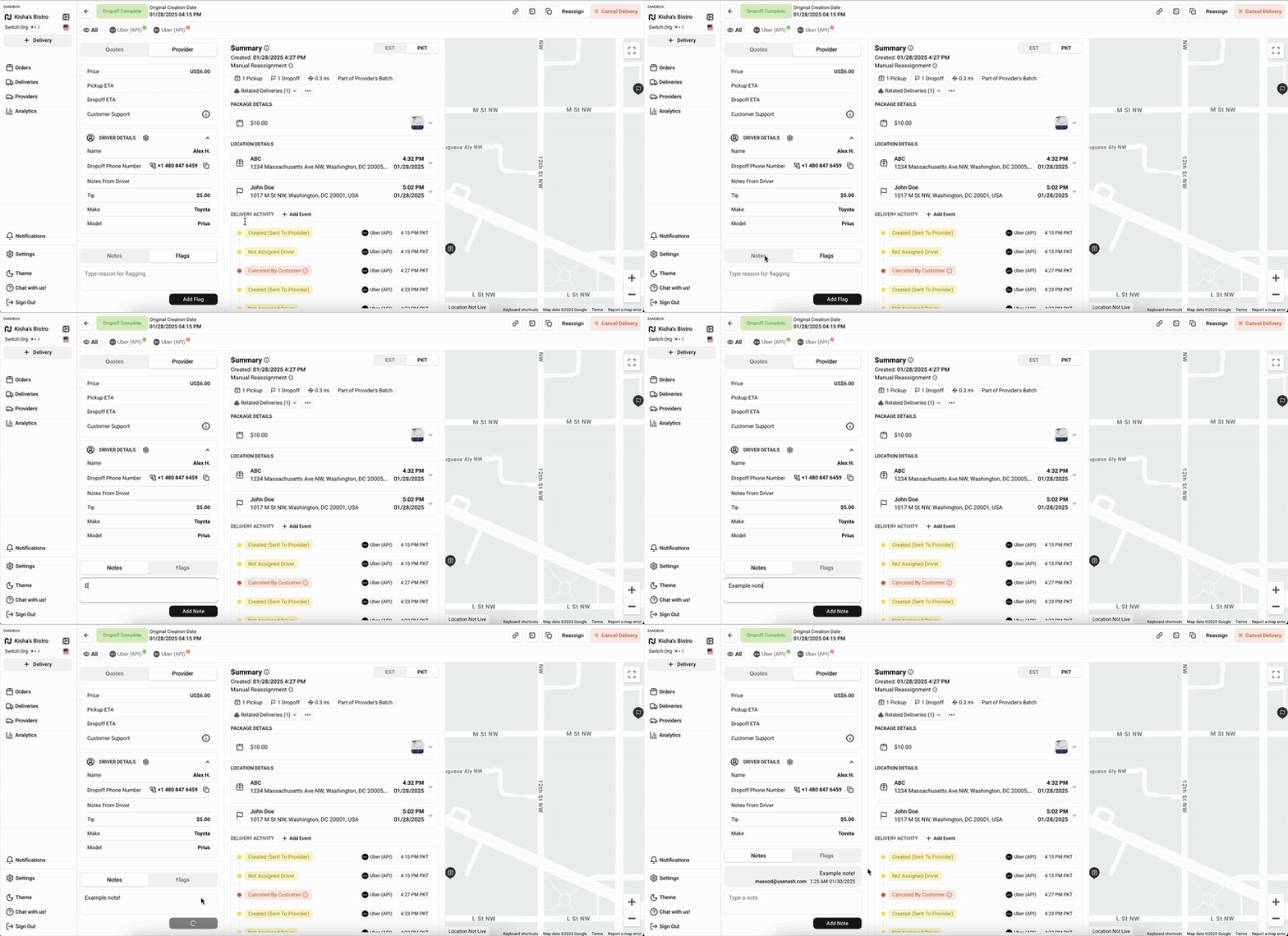
These internal notes help share updates with your team but remain invisible to drivers and customers.