Review Provider POD Photos
Last updated: January 30, 2025
Provider Proof of Delivery (POD) photos help verify successful deliveries and resolve disputes in the Nash platform. This guide explains how to locate and review these essential delivery confirmation images.
Steps to Access Provider POD Photos
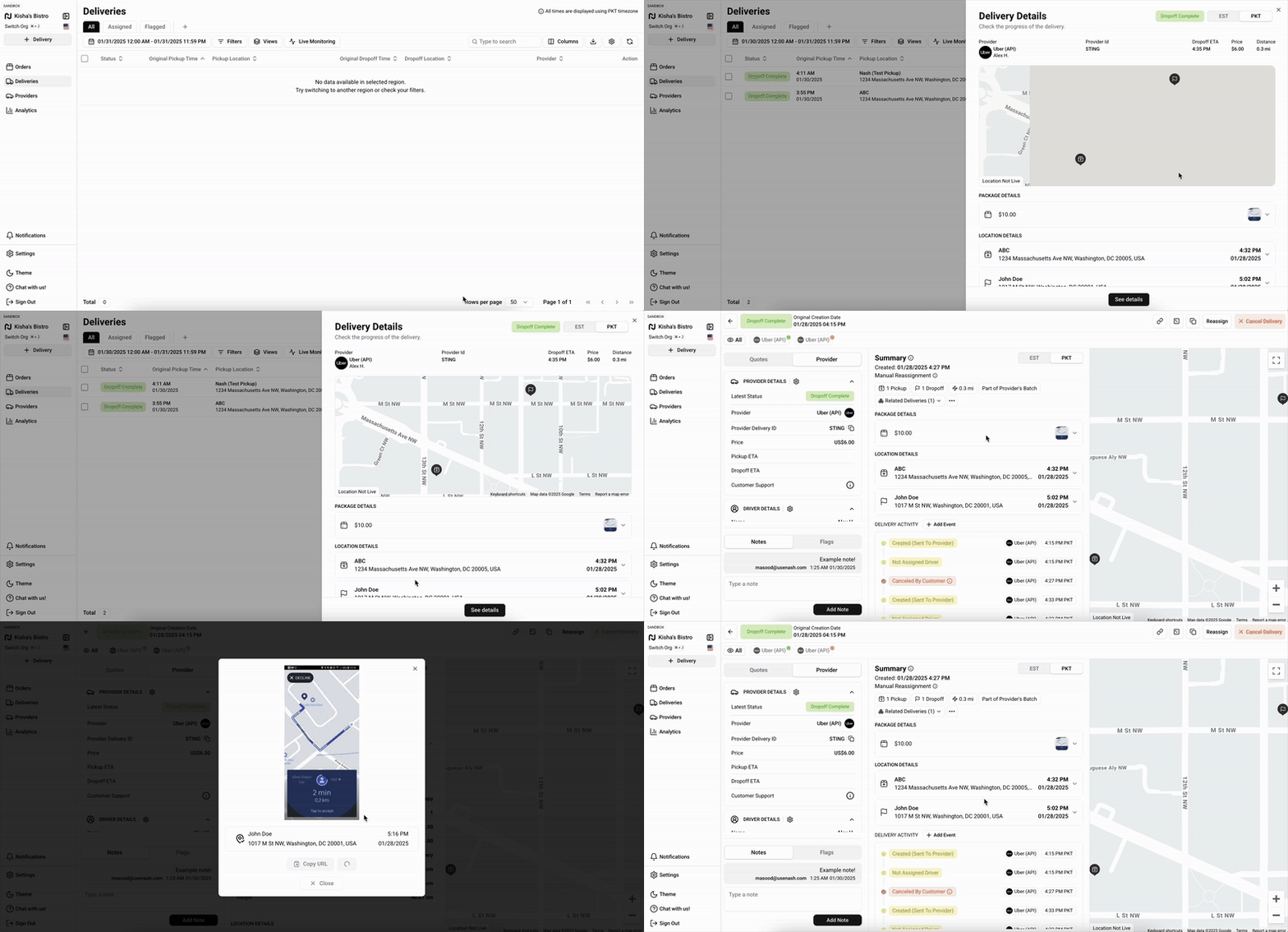
Navigate to the Deliveries Page
Log in to your Nash account
Select Deliveries from the left sidebar to view delivery history
Locate the Specific Delivery
Use the date selector in the upper left corner to set your desired timeframe
Find the delivery using the search function or scroll through the filtered list
Open the Delivery Details
Click the delivery row to open the side drawer
The POD is available in under Package Details of the slide out drawer. Select the thumbnail to enlarge the photo.
For more information including the POD, select See details at the bottom to access the full Delivery Details page
Find the POD Photos Section
Scroll to the Package Details section
The image appears after the delivery status changes to Completed
View and Review the Photos
Click thumbnails to enlarge photos for detailed inspection
Verify important delivery details:
Package condition: Check for any visible damage
Delivery location: Confirm correct address
Identifying features: Look for house numbers or landmarks
Download or Share Photos
Use available download or share options as needed
Features may vary based on your account settings
Use Photos for Verification
Reference these photos when confirming deliveries
Utilize images to address customer inquiries or disputes