Tracking Delivery Progress with the Delivery Timeline
Last updated: February 7, 2025
The delivery timeline feature offers real-time updates, keeping you informed about each step of the delivery process.
Accessing the Delivery Timeline
Log in to your Nash portal account.
Select Deliveries on the dashboard.
Find the delivery you want to track.
Select the delivery to open the Delivery Details page.
Locate the Delivery Timeline in the center of the screen.
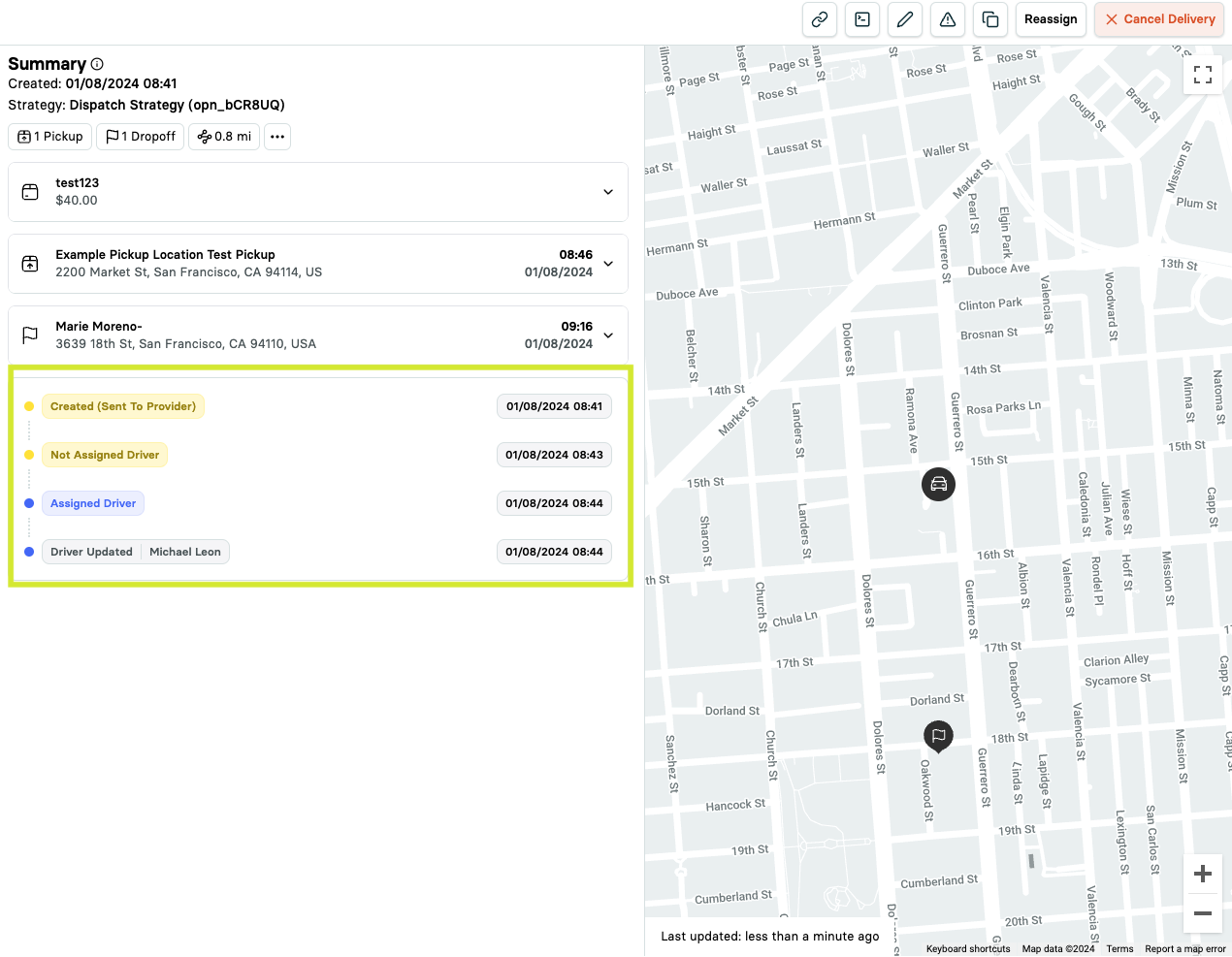
The timeline shows status updates with timestamps, tracking the driver’s actions and progress.
Understanding Status Updates
Common updates include:
Created: Delivery order registered.
Assigned Driver: Driver assigned to the delivery.
Pickup Enroute: Driver heading to the pickup location.
Pickup Arrived: Driver arrived at the pickup location.
Barcode Scan - Pickup: Status of item barcode verification at pickup (Success/Failure/Skipped).
Pickup Complete: Items successfully picked up.
Dropoff Enroute: Driver heading to the dropoff location.
Dropoff Arrived: Driver at the dropoff location.
Barcode Scan - Dropoff: Status of item barcode verification at delivery (Success/Failure/Skipped).
Dropoff Complete: Delivery successfully completed.
Updates appear in reverse chronological order, with the most recent at the top.
Typical Delivery Flow
CREATED →NOT_ASSIGNED_DRIVER →ASSIGNED_DRIVER → PICKUP_ENROUTE → PICKUP_ARRIVED → PICKUP_COMPLETE→ DROPOFF_ENROUTE → DROPOFF_ARRIVED → DROPOFF_COMPLETE.
Important Notes
Status updates may vary by delivery provider.
Some providers offer more detailed updates than others.
Certain statuses may appear simultaneously if the provider skips intermediate steps.
Regularly check the timeline to stay updated, manage customer expectations, and address potential delays.